
Providing Access to Your BigCommerce Website
Beamtrace may occasionally request temporary access to your BigCommerce site to help improve your website’s visibility and ensure everything is set up properly.
This article provides step-by-step instructions on how to grant us access and how to remove it once our assistance is no longer needed.
In this article
Providing Access
To give us access, you’ll need to create a new user account. Follow these steps:
- 1
-
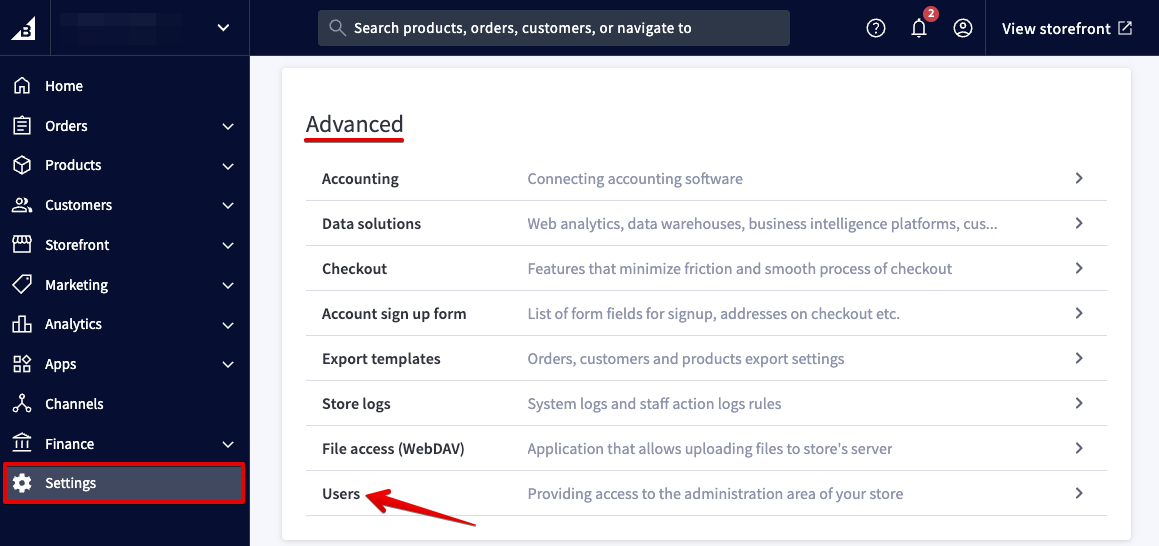
Log in to your BigCommerce admin panel. Open the Settings tab, scroll to the Advanced section, and click Users:
- 2
-
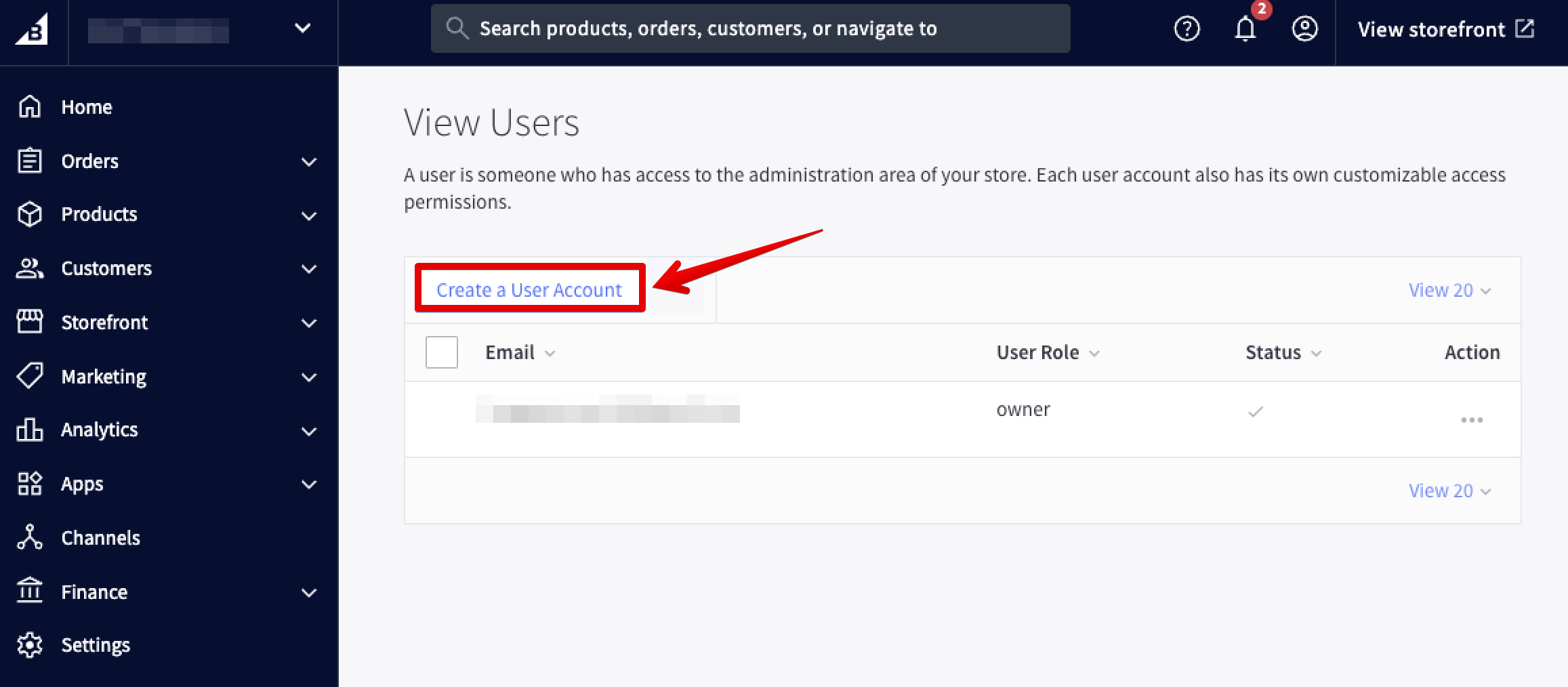
Click Create a User Account:
- 3
-
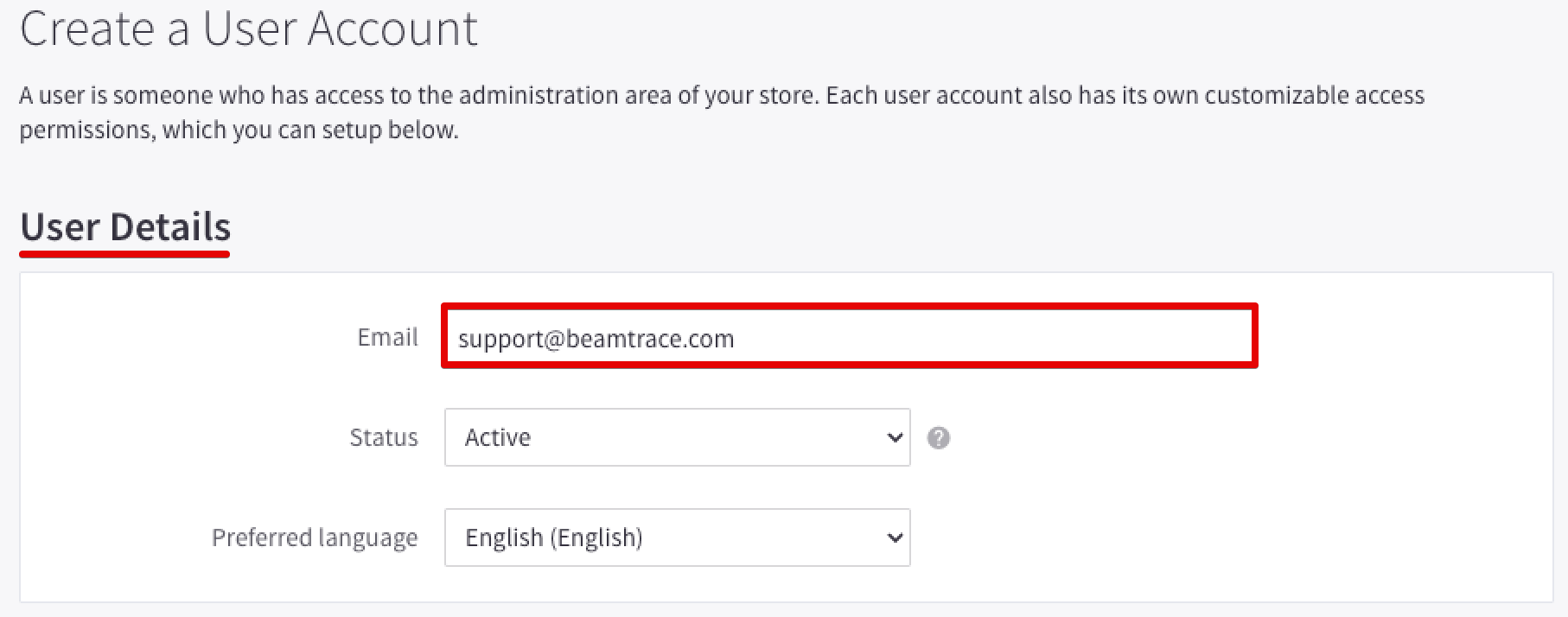
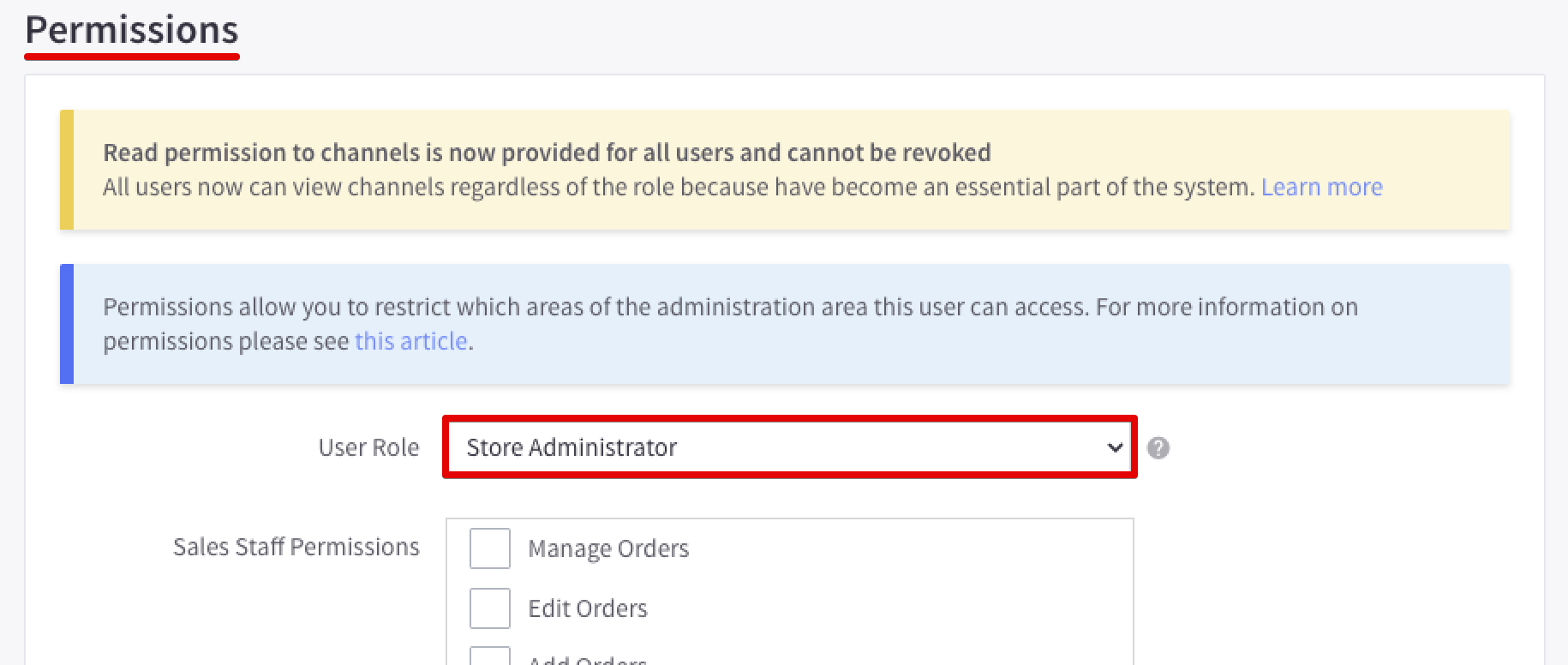
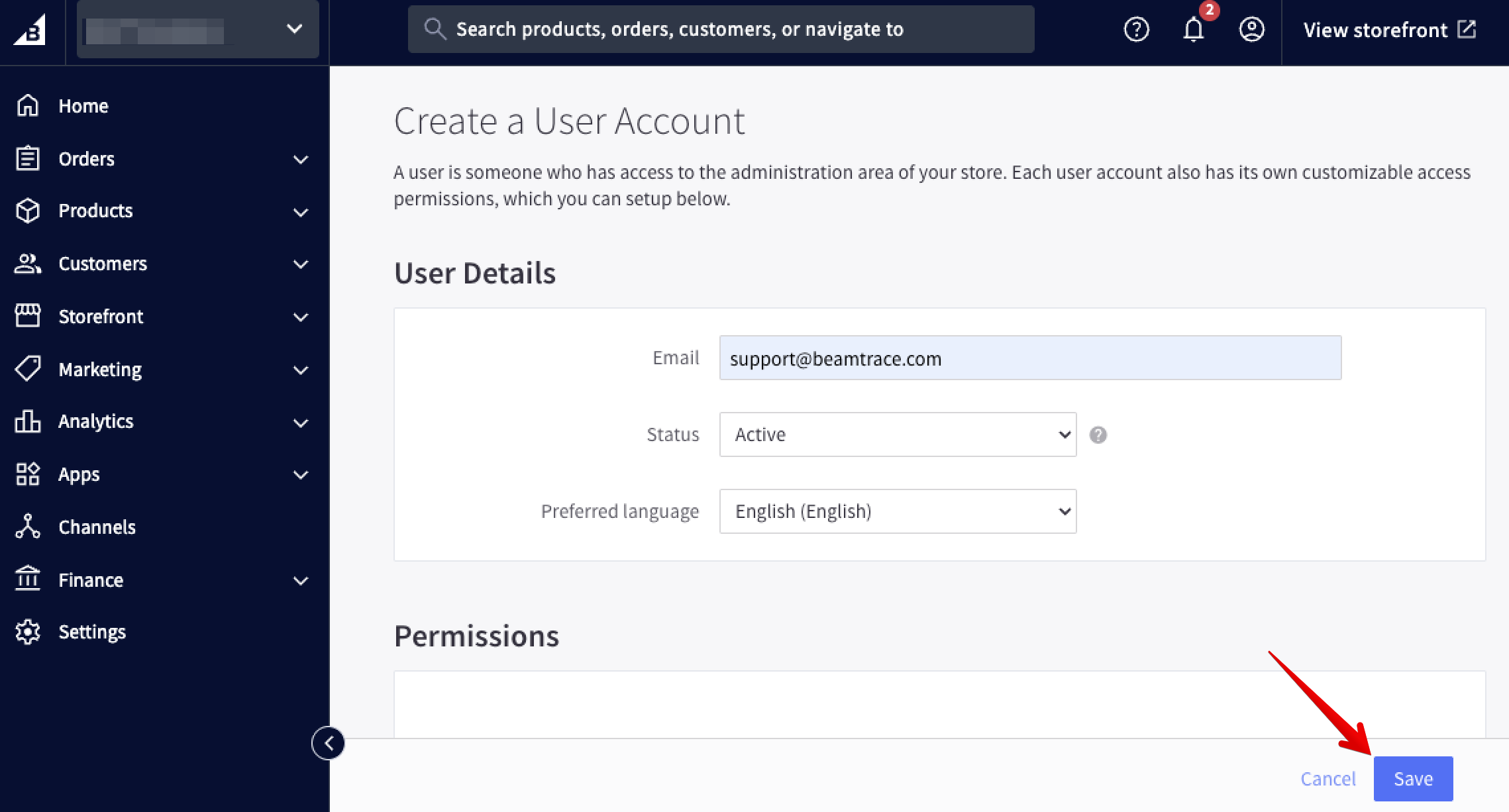
Within User Details and Permissions, fill in the following user information:
- Email: [email protected]
- User Role: Store Administrator
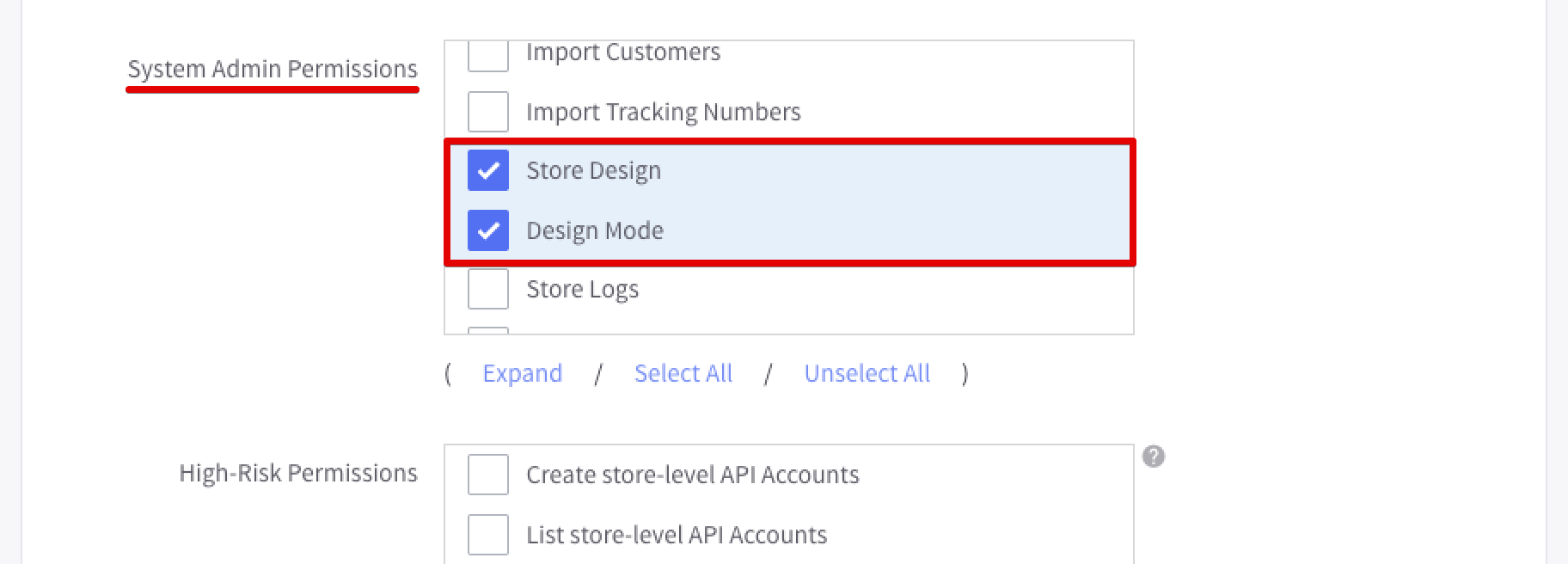
- User Permissions: check Store Design and Design Mode in System Admin Permissions. Uncheck the rest of the options in the other sections:
- 4
-
Click Save:
That’s it! The invitation will be sent automatically, and we’ll be notified once we have access to your store. 🙌🏻
Removing Beamtrace User
Once we’ve finished assisting you, you can easily remove Beamtrace’s access by following these steps:
- 1
-
Open the Settings tab in your admin panel, scroll to the Advanced section, and click Users:
- 2
-
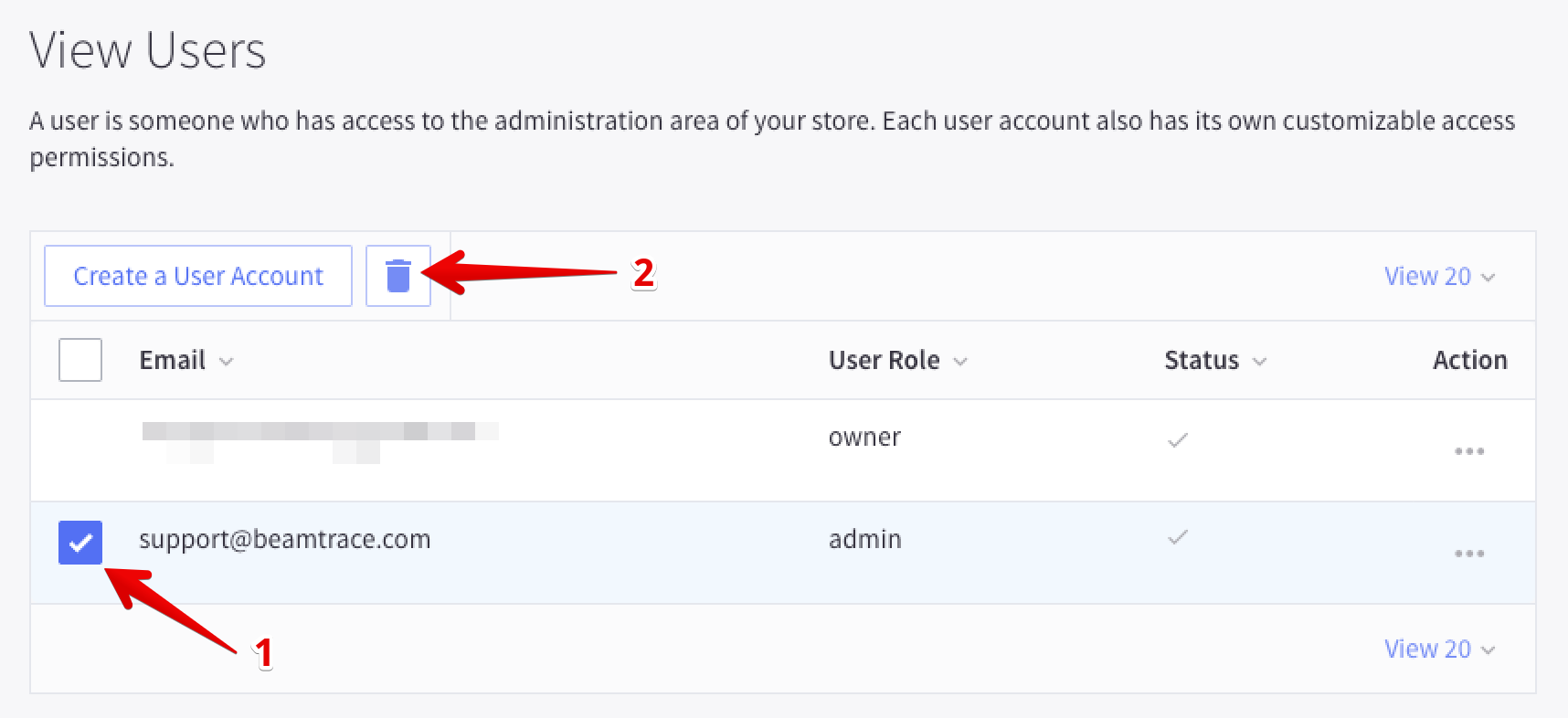
Choose the Beamtrace user and click the 🗑️ icon:
- 3
-
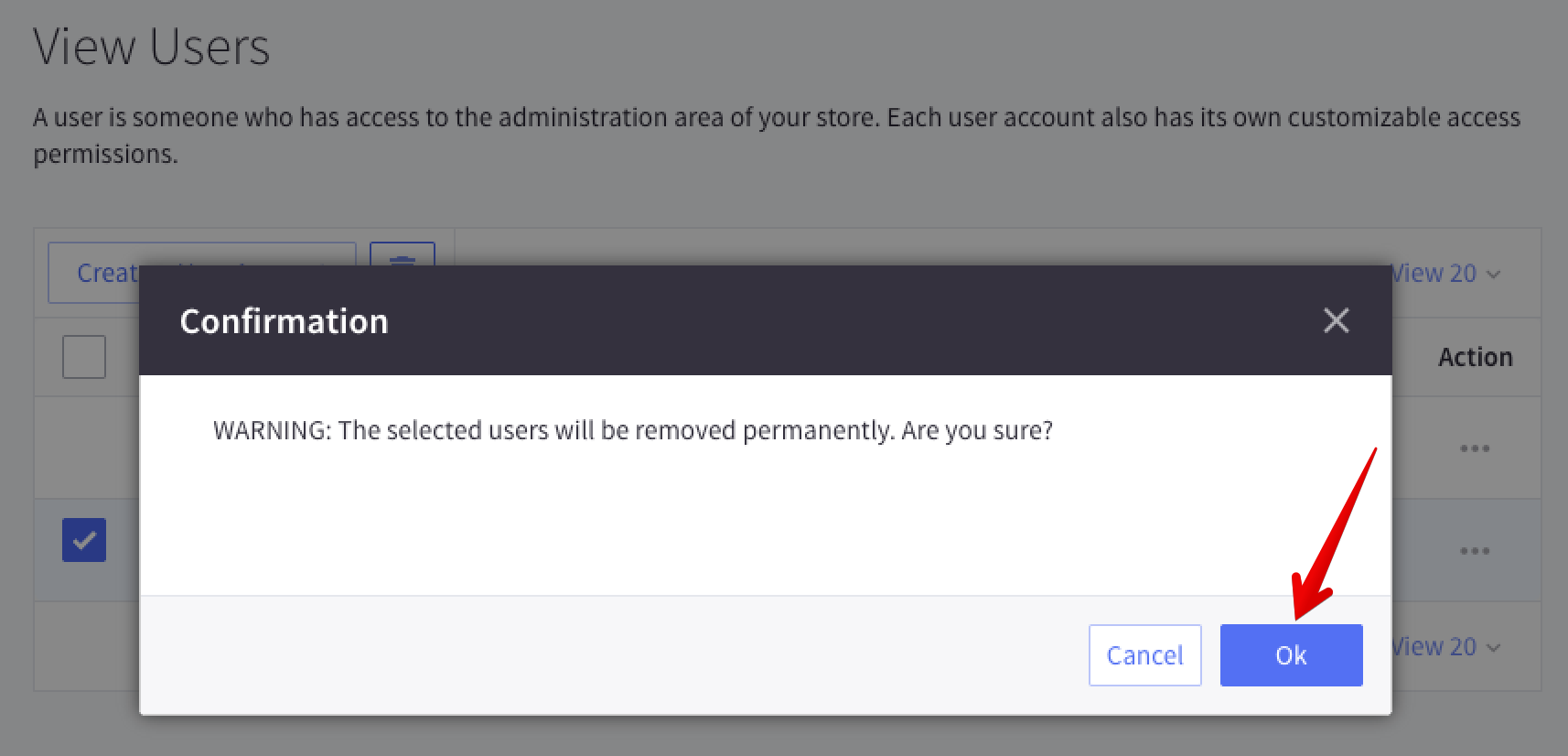
Confirm the deletion:
Done! The user with the email [email protected] no longer has access to your store.
If you run into any issues or need a hand at any step, feel free to reach out to our support team at [email protected] — we’re always happy to help! 😊