
Providing Access to Your GoDaddy Website
Beamtrace may occasionally require temporary access to your GoDaddy website to help optimize your site’s visibility and ensure that everything is correctly set up.
This guide explains how to grant us access and how to remove it once our assistance is no longer needed.
In this article
Providing Access
To share access with Beamtrace, please follow the steps below:
- 1
-
Open your GoDaddy account settings or access them from your dashboard:
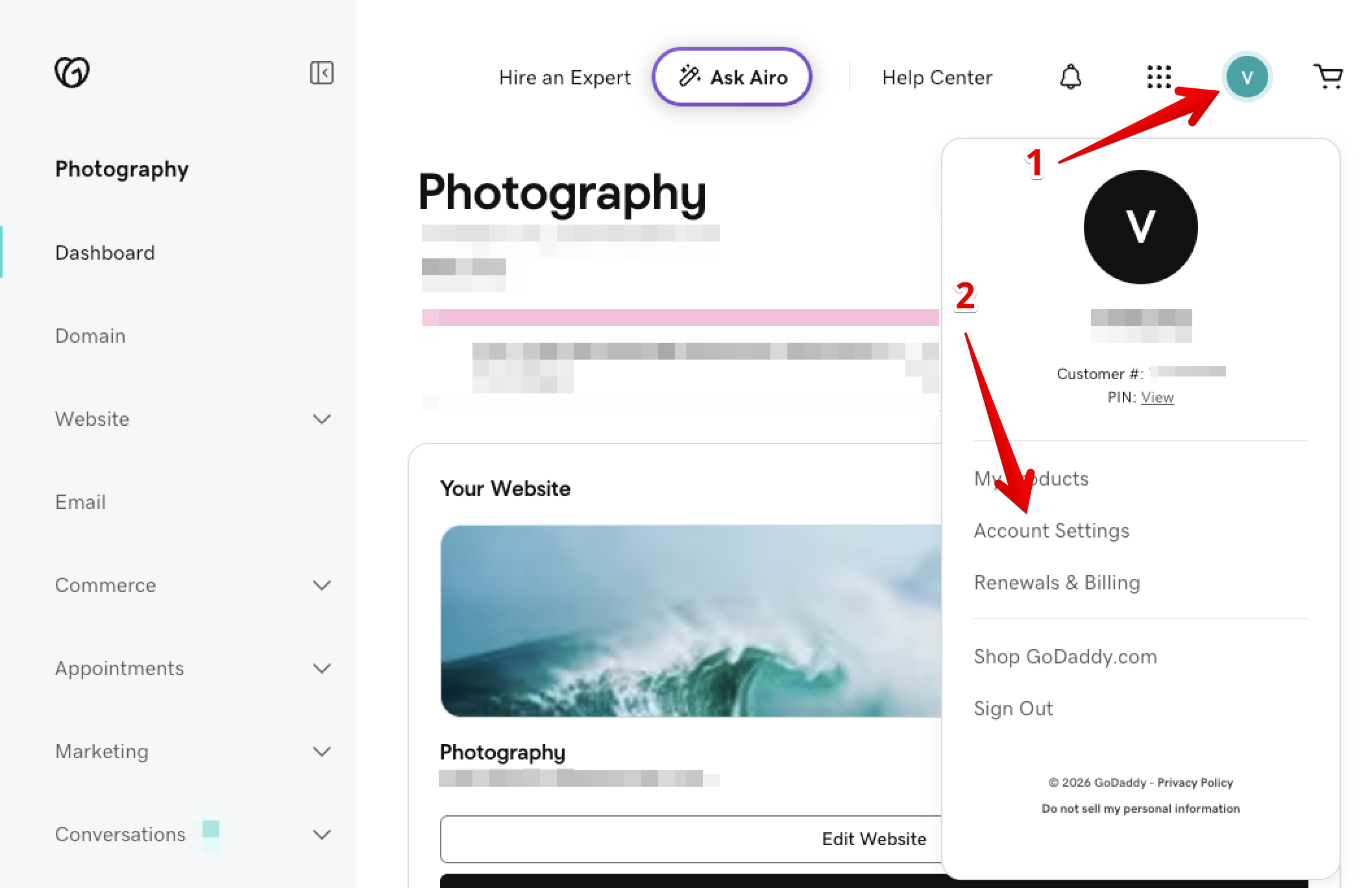
- 2
-
Navigate to the Delegate Access section:
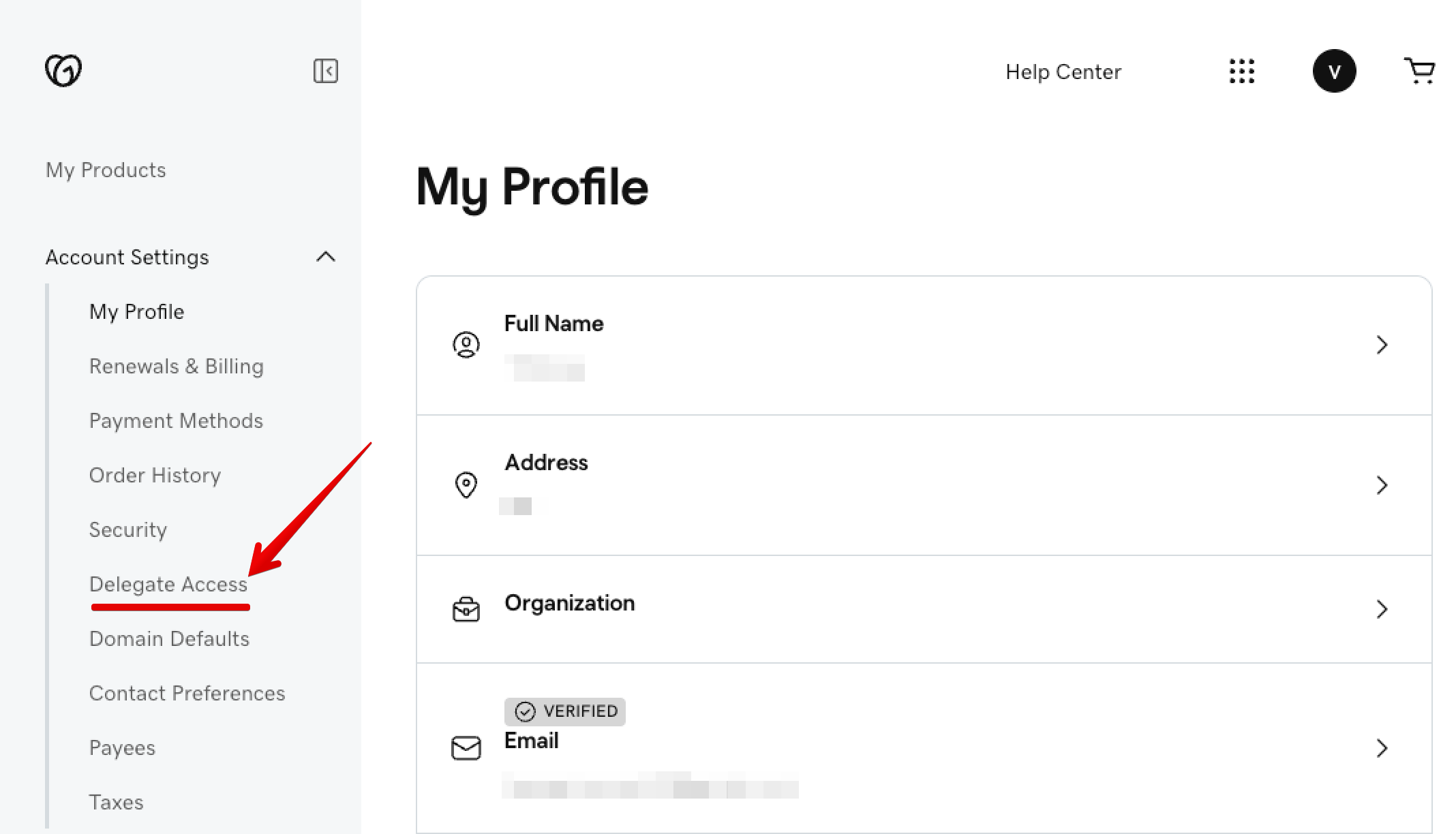
- 3
-
Click Invite to Access:
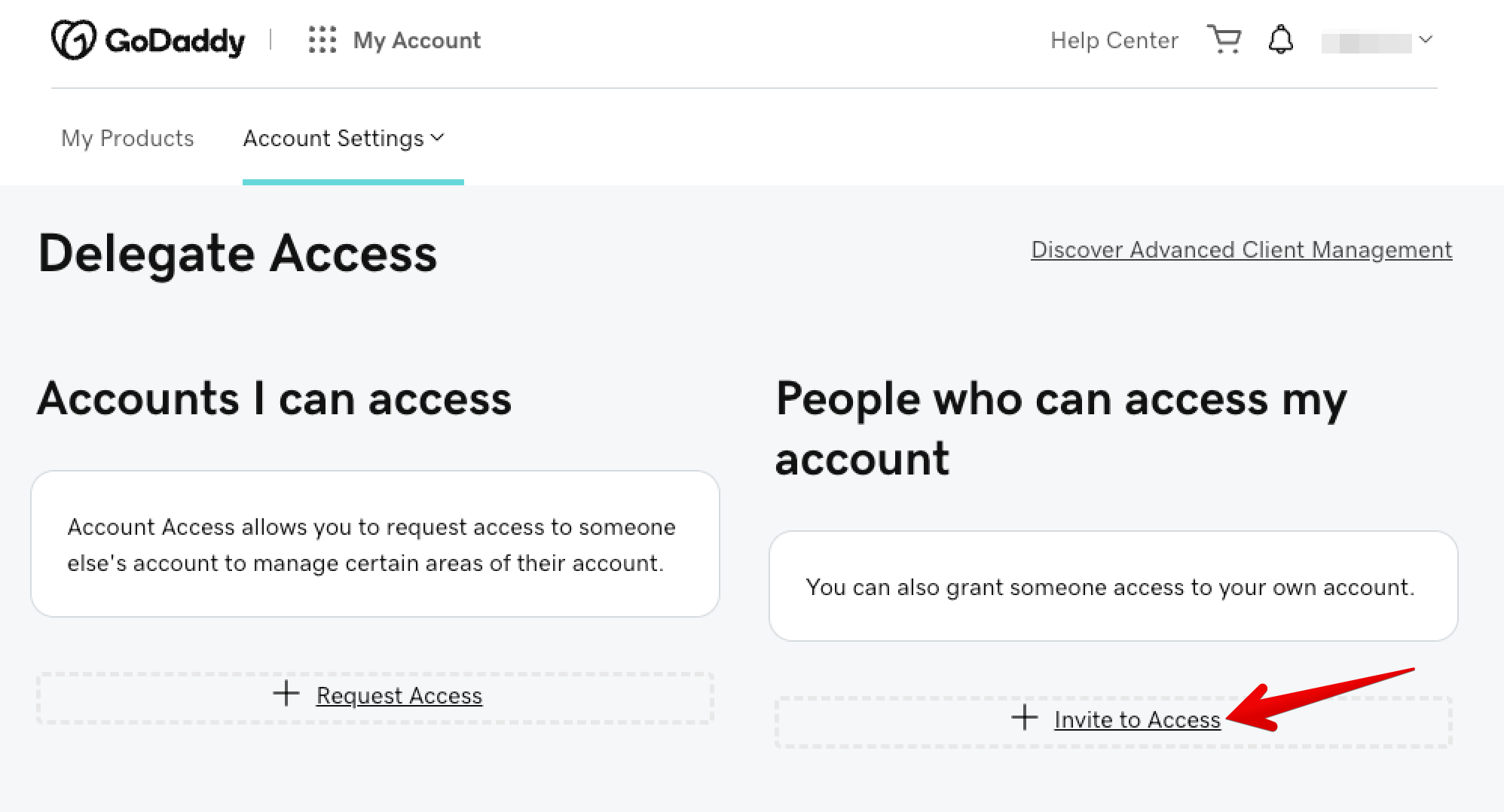
- 4
-
Enter the following details, then click Invite:
- Name: Beamtrace
- Email: [email protected]
- Access Level: Products & Domains
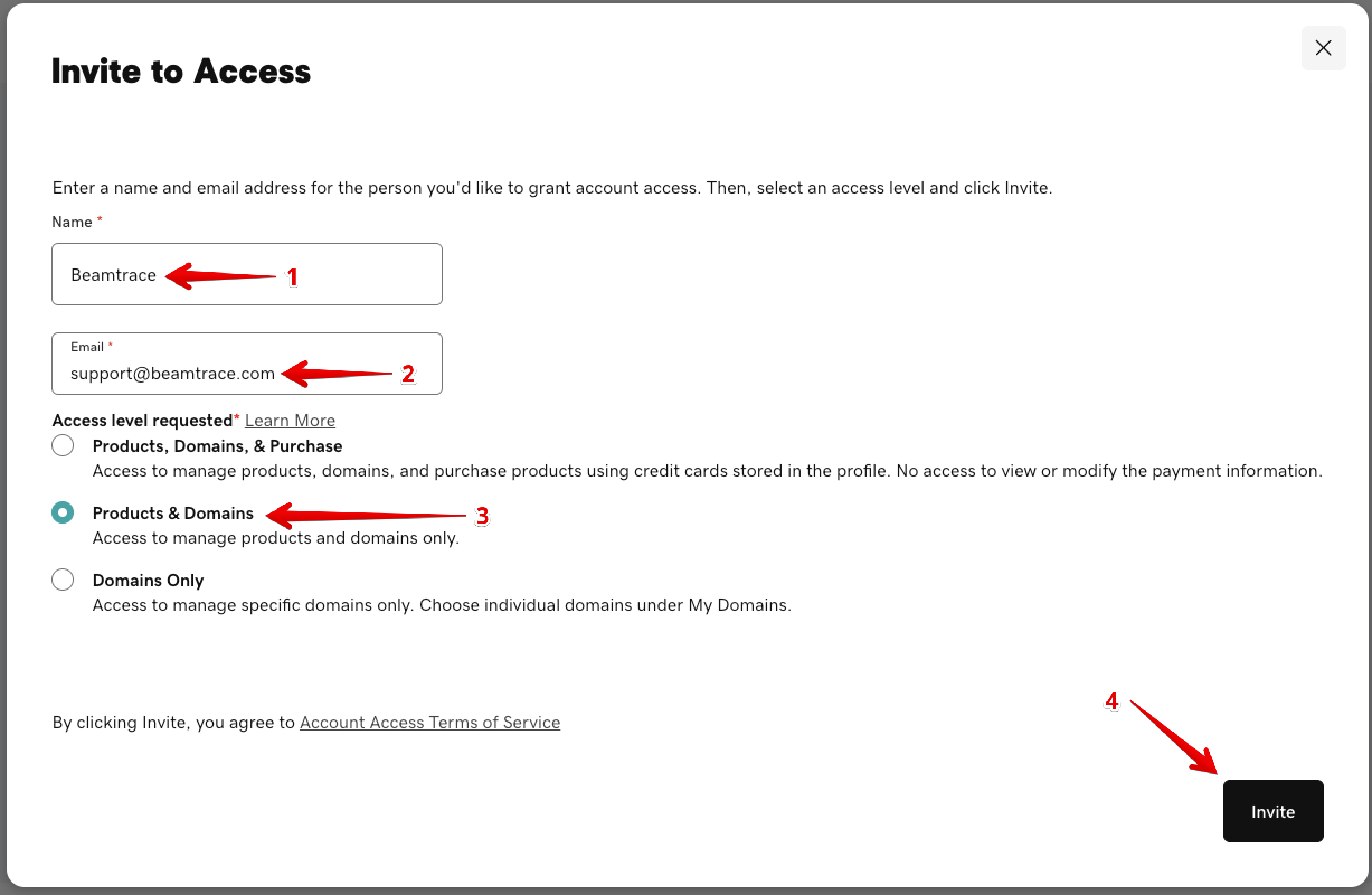
Great! The user [email protected] has been added.
Removing Beamtrace User
Once we’ve finished assisting you, you can easily revoke access by following these steps:
- 1
-
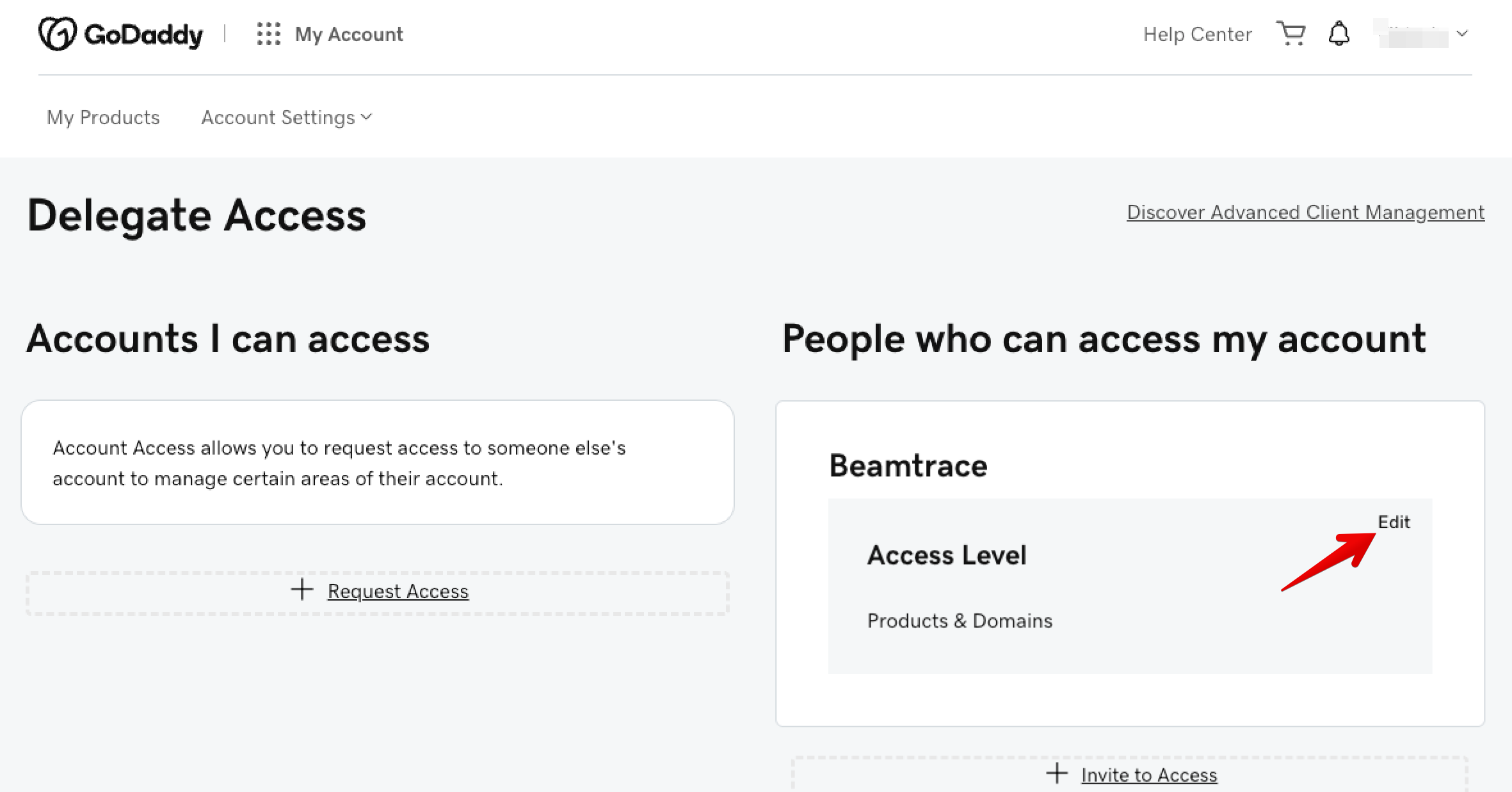
Go to the Delegate Access page:
- 2
-
Locate the Beamtrace user and click Edit:
- 3
-
Click Delete to remove access:
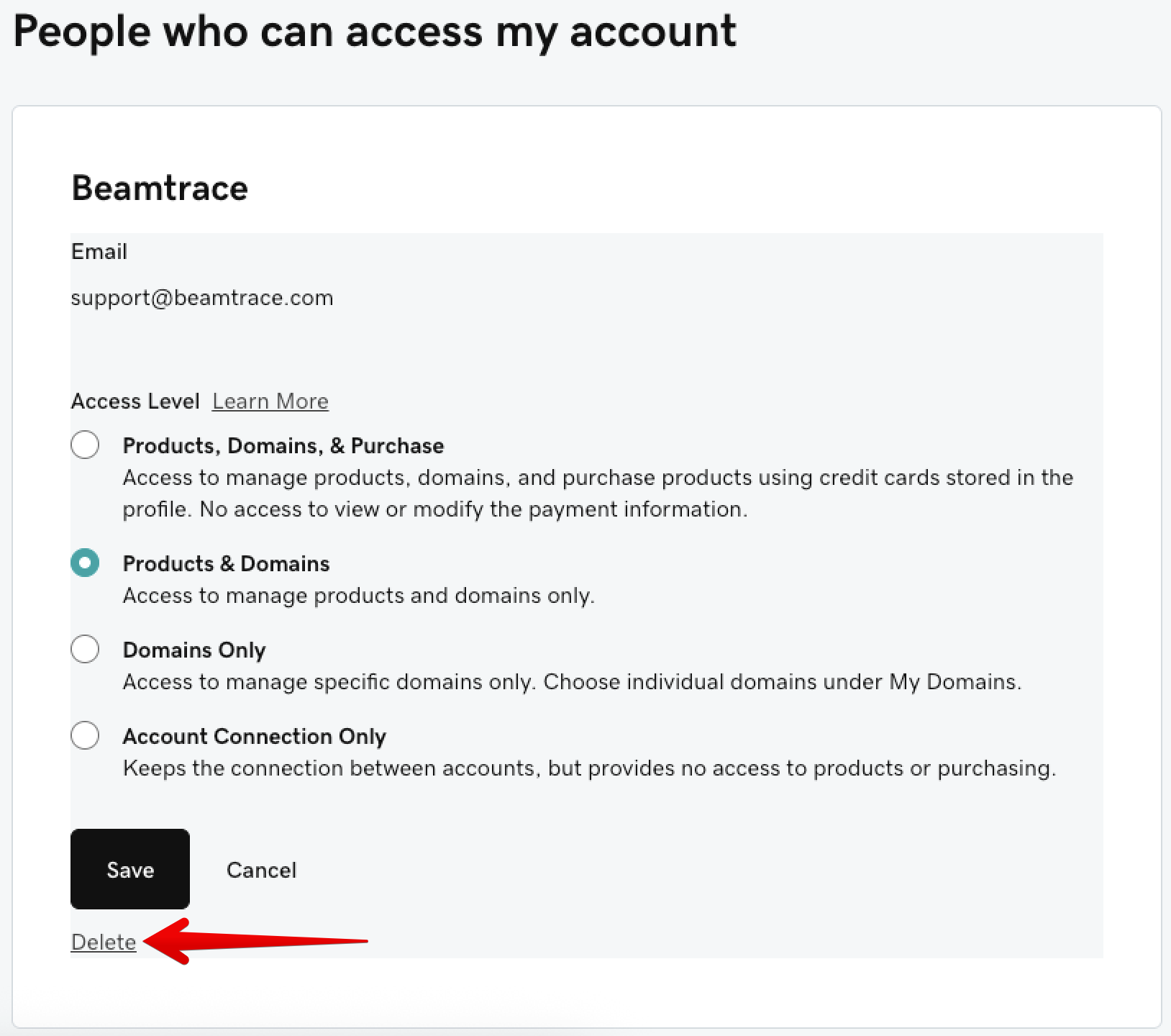
Done! Access for Beamtrace has now been successfully removed.
If you run into any issues or need a hand at any step, feel free to reach out to our support team at [email protected] — we’re always happy to help! 😊