
Providing Access to Your Shopify Website
Beamtrace may occasionally need temporary access to your Shopify website to help optimize your website’s visibility and ensure everything is set up properly.
In this article, we'll provide you with a step-by-step guide on granting us access and removing it when it's no longer required.
In this article
Sharing Access
There are two ways you can give us access to your Shopify website's backend. Let's go over both options.
Collaborator Request
To access your website's backend, we submit a collaborator request targeting only Applications, Settings, Blog Posts, Pages, Navigation, and Themes sections of your admin panel.
- 1
-
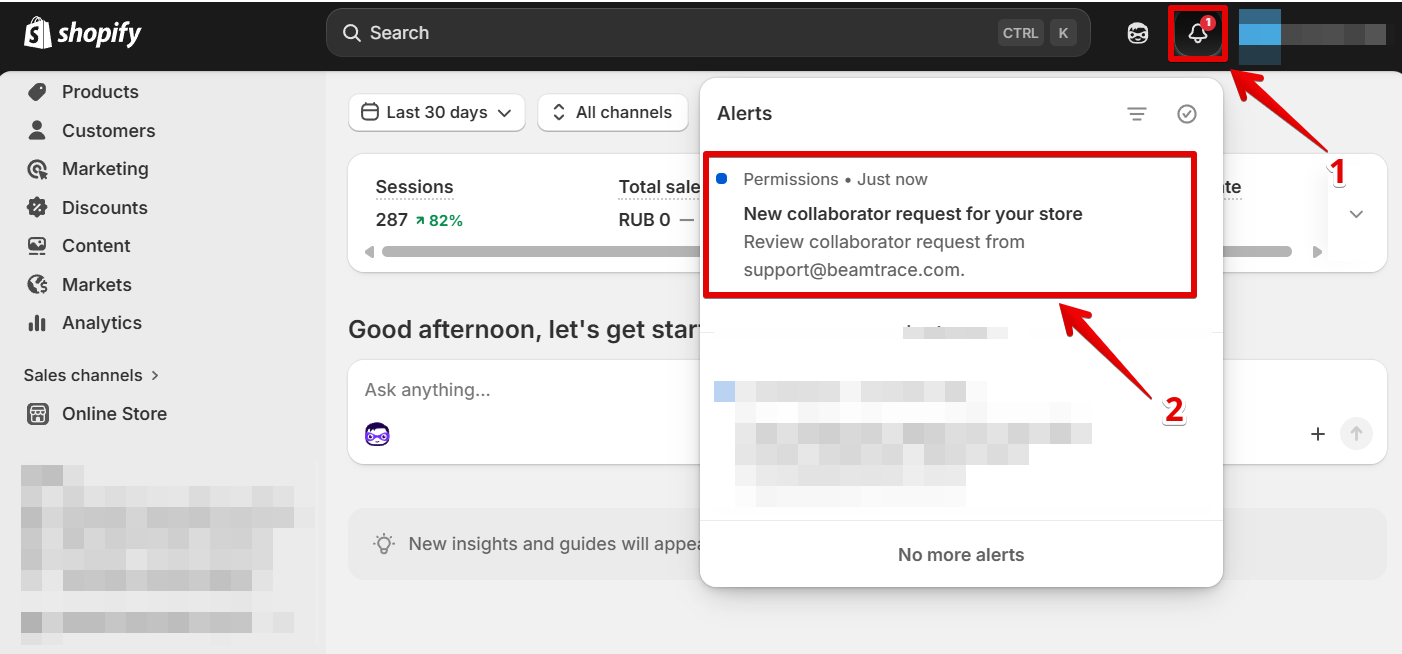
You'll see the collaborator request notification in the top left corner of your Shopify dashboard. Simply click on the alert to proceed:
- 2
-
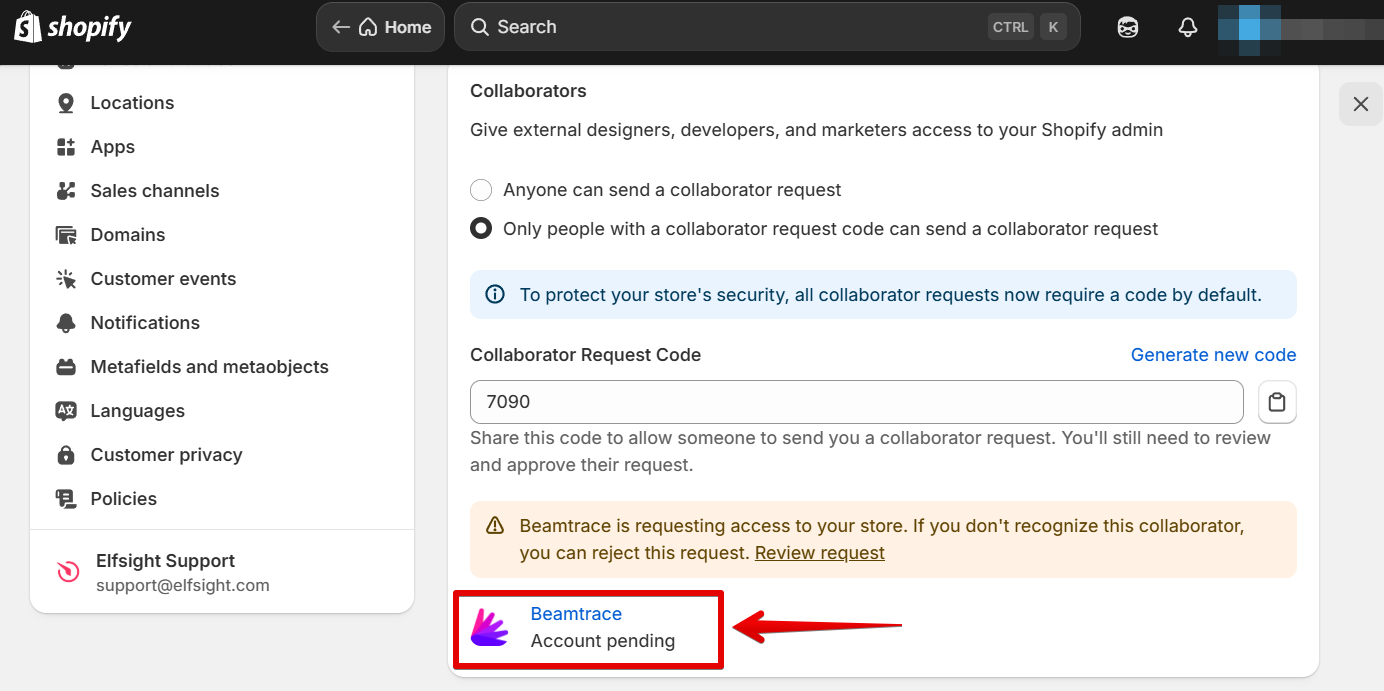
Then scroll to Collaborators and click on the pending request:
- 3
-
Press Accept Request: 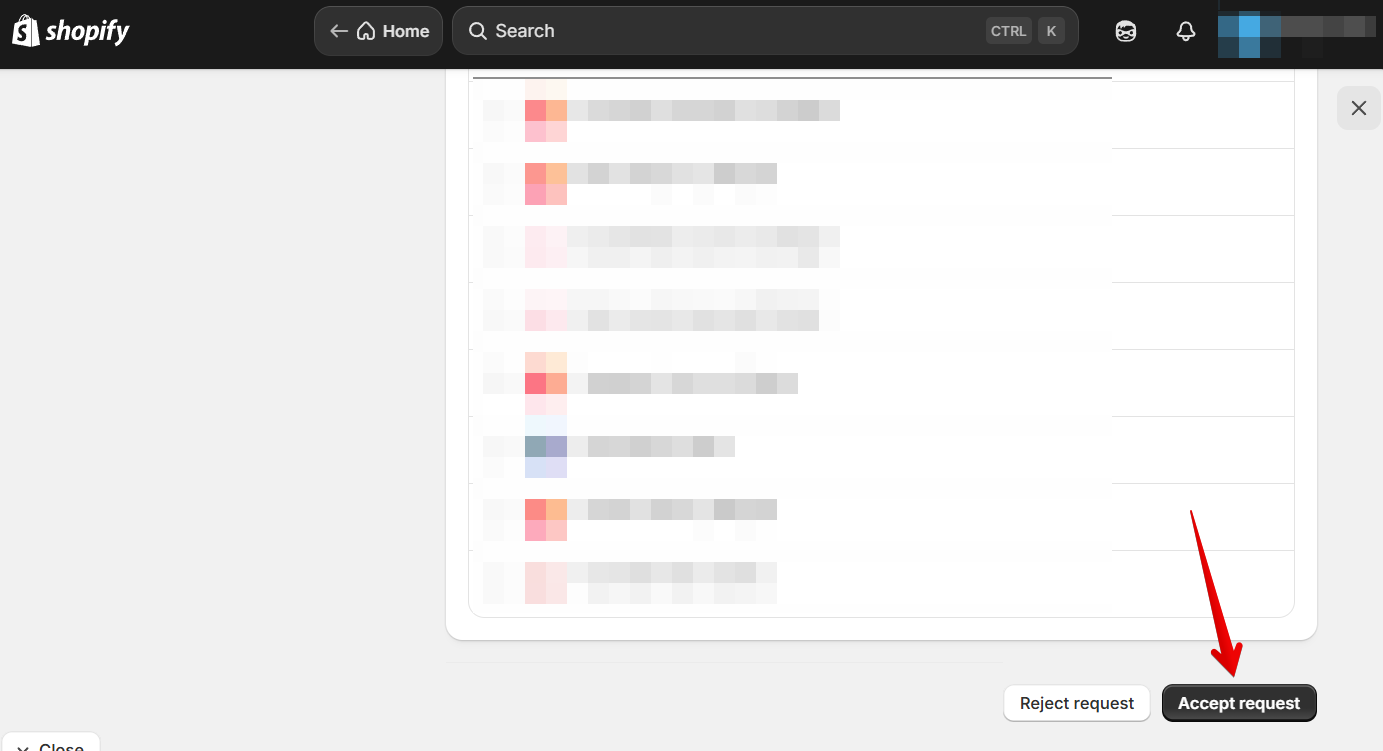
The request has been approved. We will get a notification that we can now access your website's backend.
Creating Staff Account
You can also give us access to your website's backend by sending us an invitation to create a Staff Account.
Starter and Basic Shopify plans do not include the Staff Account feature. This option is available only for those who have a Grow plan or higher.
If you are a Starter or Basic plan user, please send us your collaborator code, so that we can request collaborator access to your website.
- 1
-
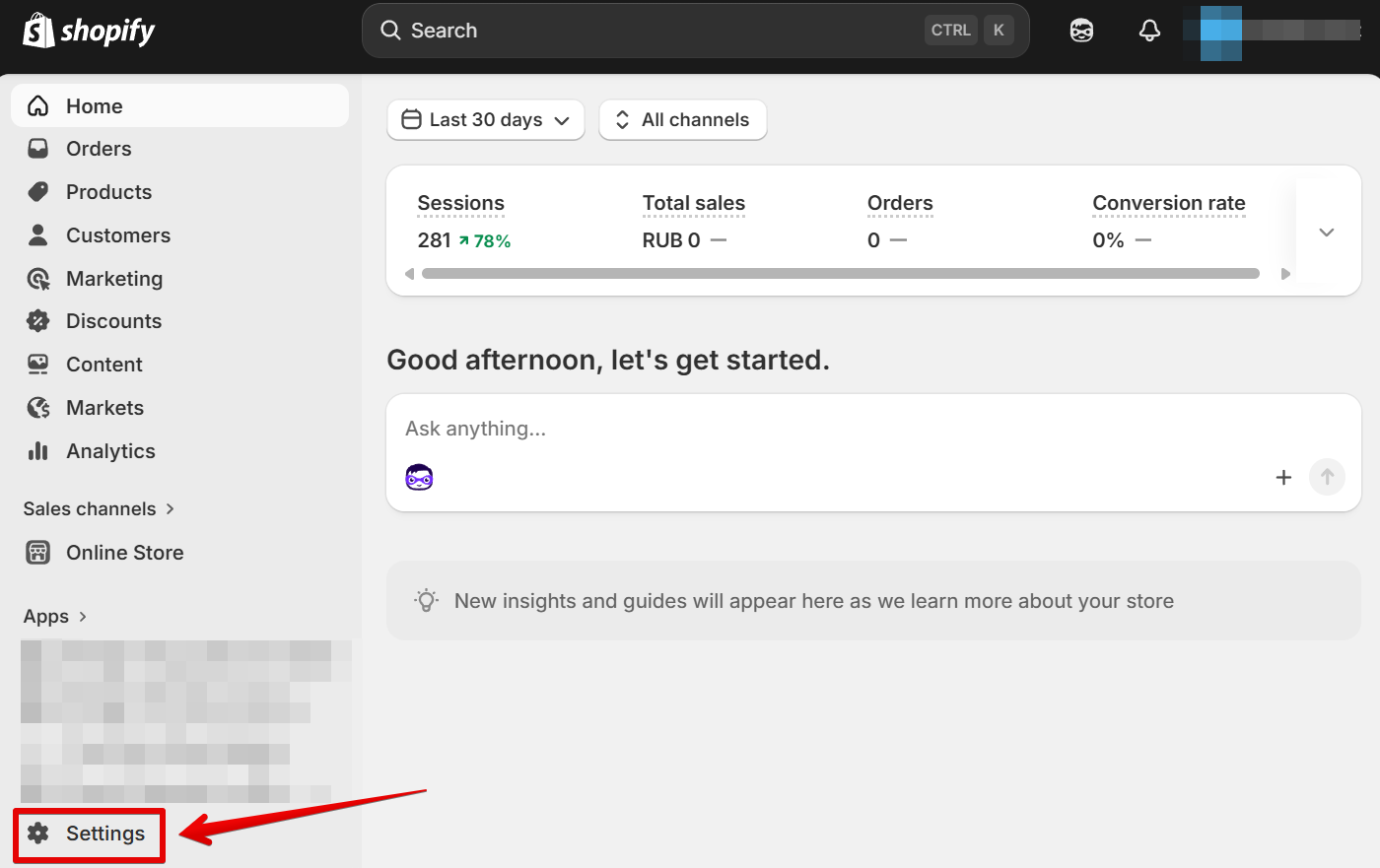
Log in to your Shopify admin panel and click Settings:
- 2
-
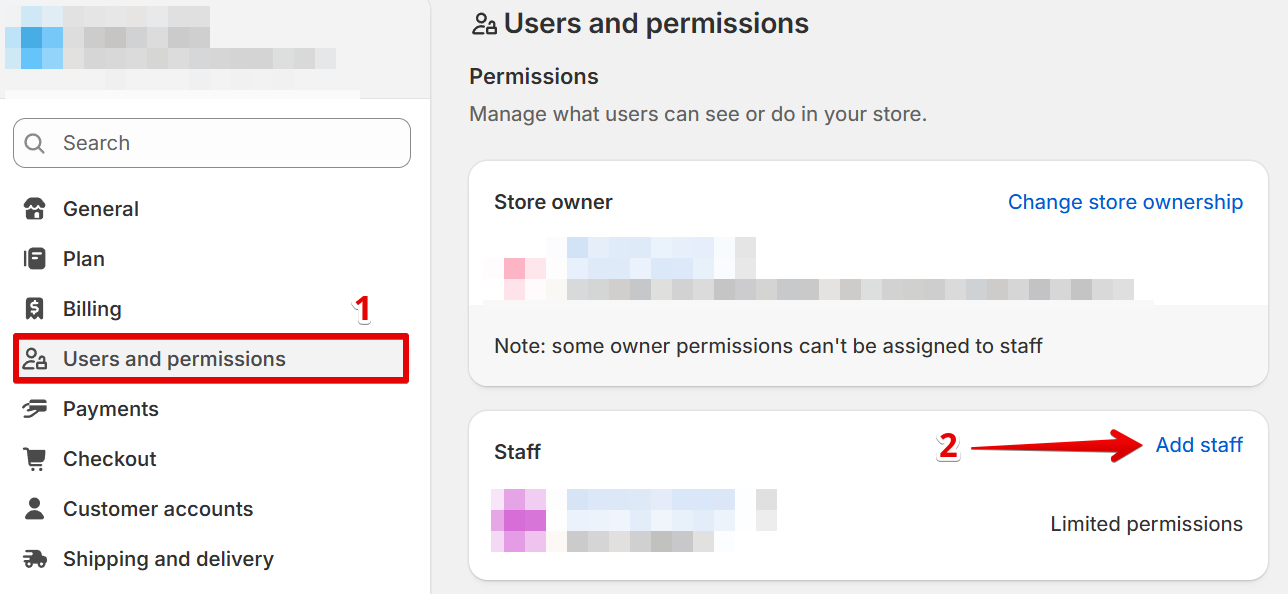
Go to Users and permissions and click the Add Staff button:
- 3
-
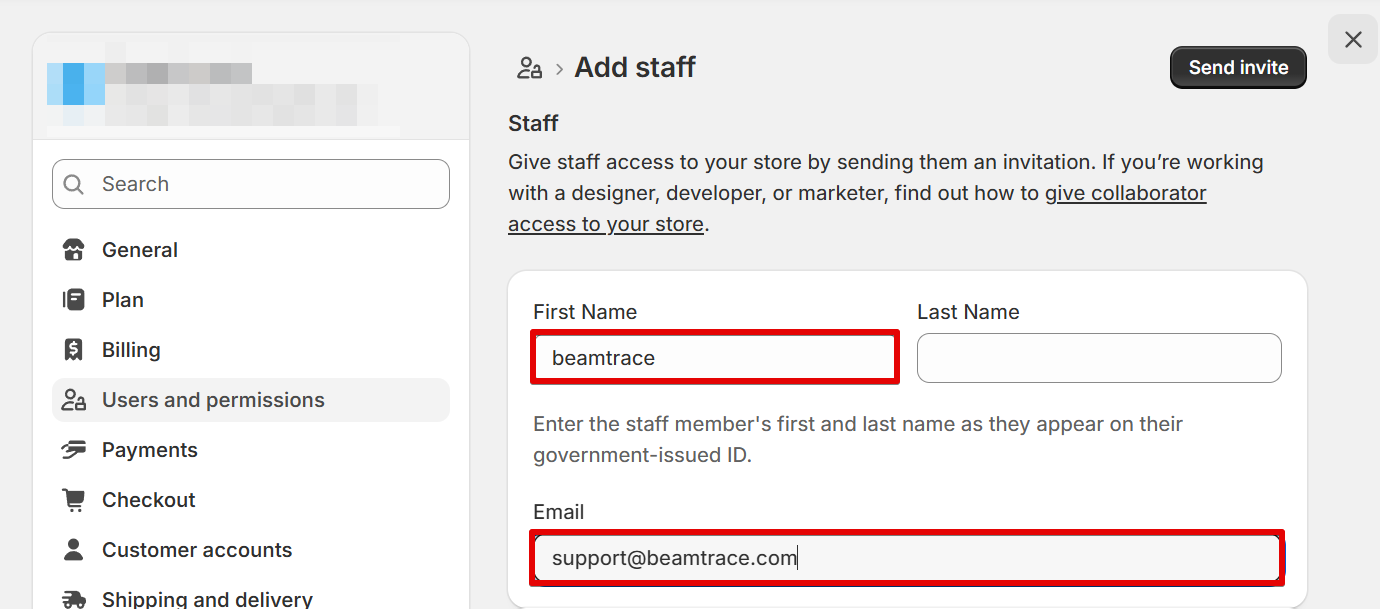
Fill in the Staff information and send the invite.
First, enter the account information:
- First name: beamtrace
- Email: [email protected]
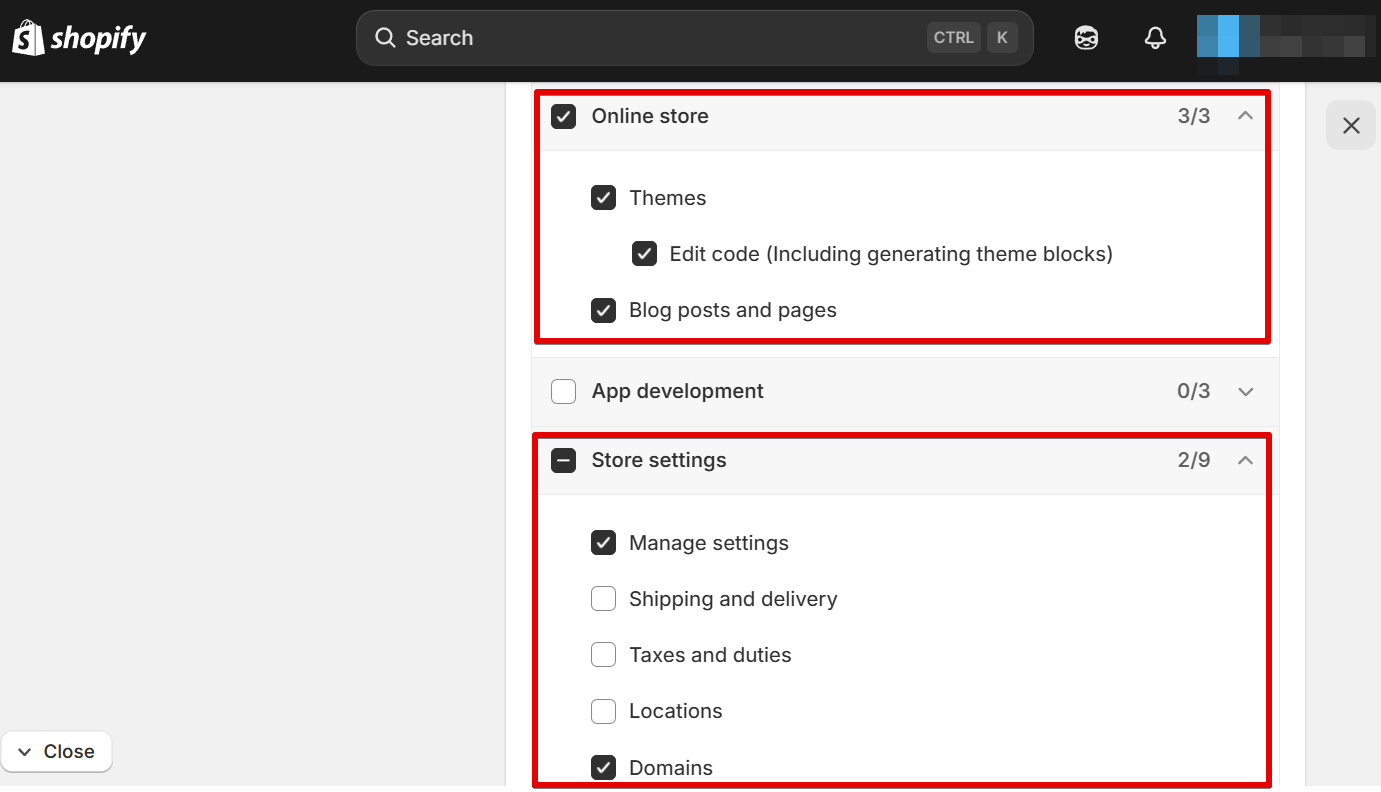
 Next, specify the Permissions:
- Online Store: Themes, Edit Code, Blog Posts and Pages, Navigation
- Store Settings: Manage Settings, Domains
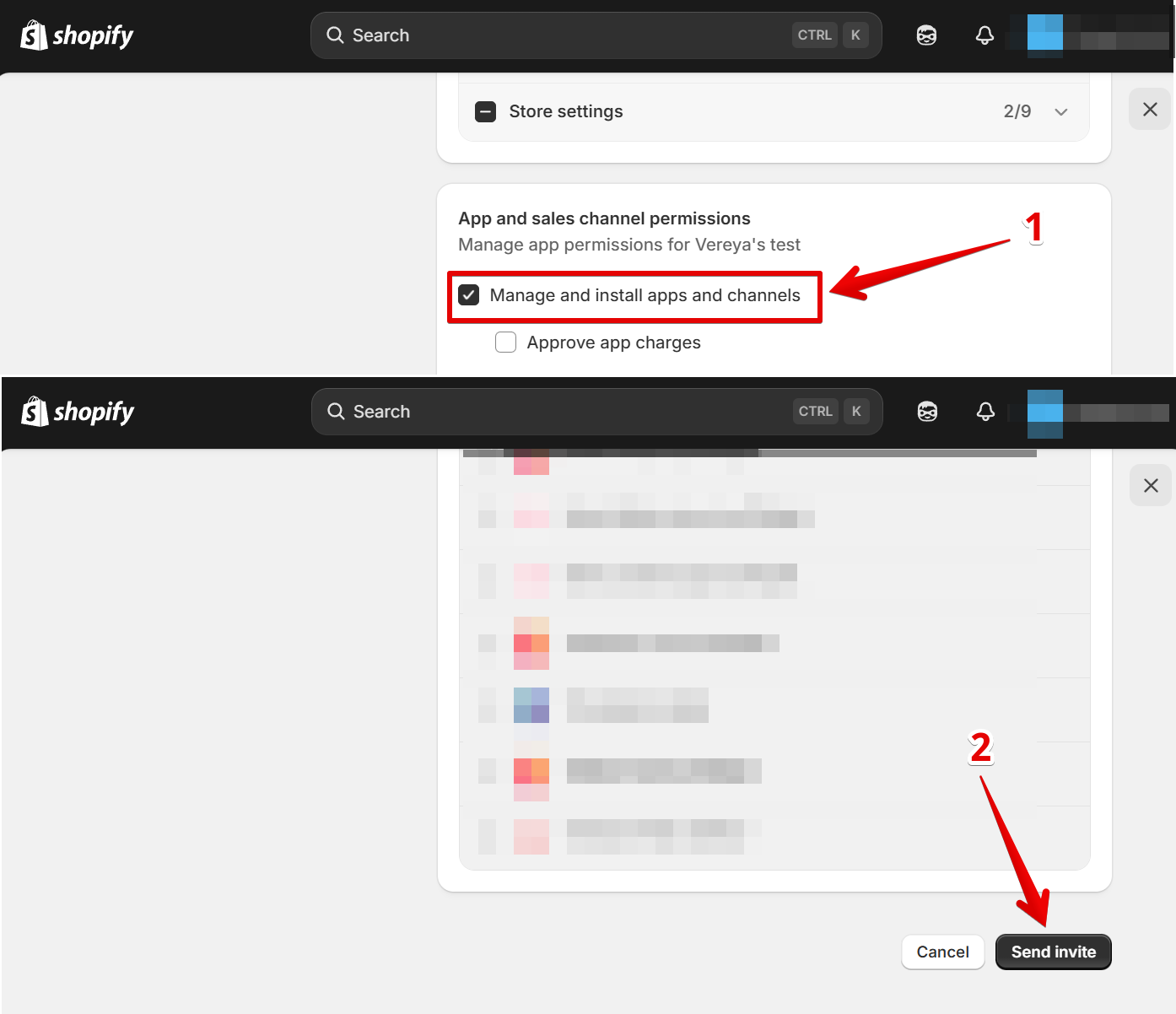
In App and sales channel permissions, check Manage and install apps and channels and click Send Invite:
 Next, specify the Permissions:
This will create a staff account for Beamtrace, and an invitation will be automatically sent to [email protected].
Removing Access
Remember to remove beamtrace from your website's backend access when you no longer need help. You can do this in two ways, depending on how you originally shared access with us.
Remove Beamtrace Support Collaborator Account
Here’s how to remove a user from collaborators:
- 1
-
Go to Settings:
- 2
-
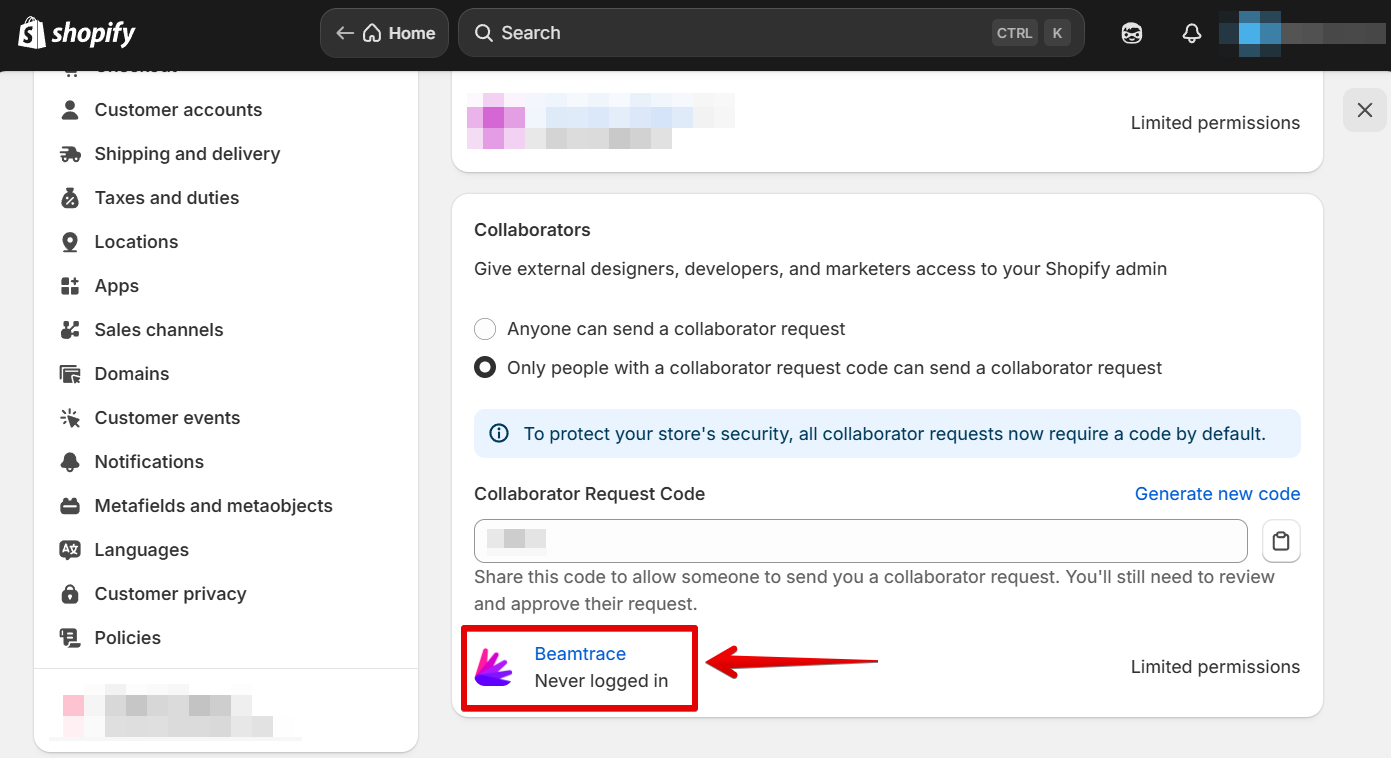
Switch to the Users and Permissions tab, scroll down to Collaborators, and select Beamtrace:
- 3
-
Scroll down the page, click Remove Beamtrace and then Save:
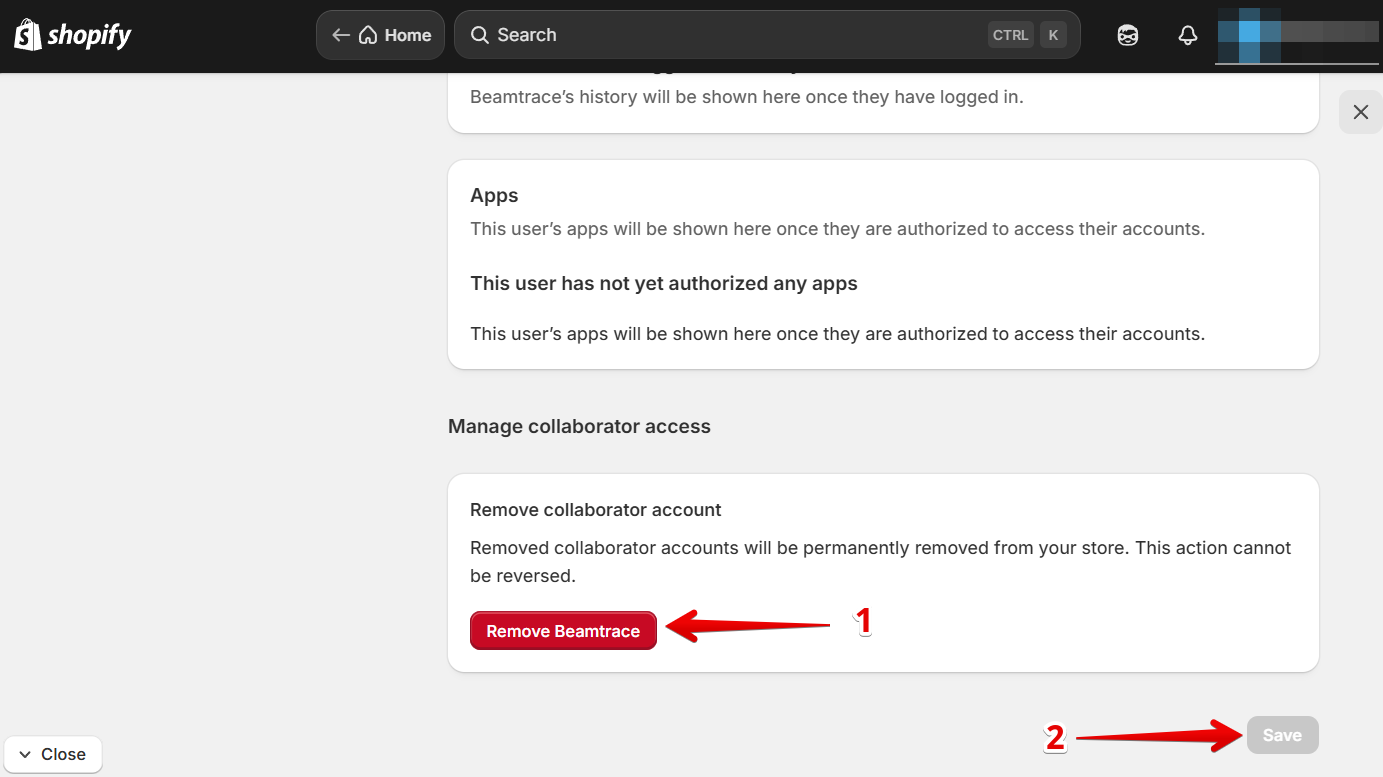
Beamtrace Collaborator Account has been removed.
Remove Beamtrace Support Staff Account
This is how you can remove a Staff Account:
- 1
-
Go to Settings:
- 2
-
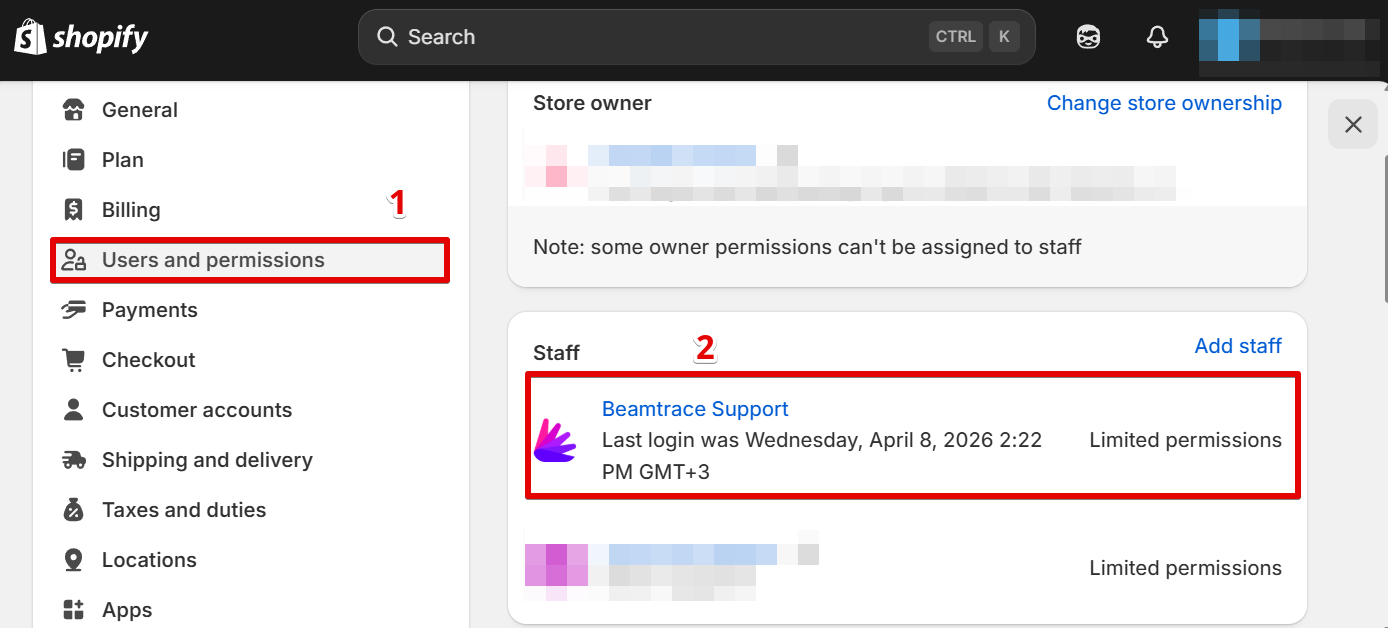
Switch to the Users and Permissions tab and choose Beamtrace Support:
- 3
-
Scroll down to the bottom of the page, click Remove Beamtrace Support and then Save:
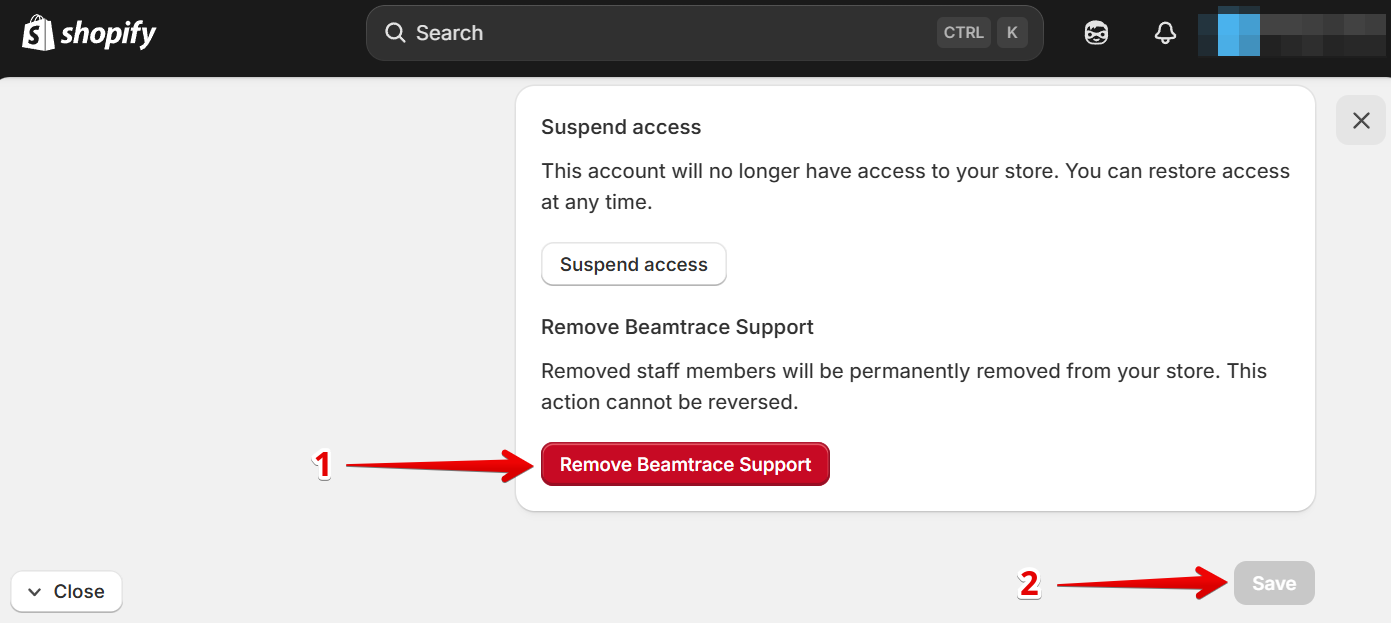
All done! Beamtrace Staff Account has been removed.
If you run into any issues or need a hand at any step, feel free to reach out to our support team at [email protected] — we’re always happy to help! 😊