
Providing Access to Your Framer Website
Beamtrace may occasionally need temporary access to your Framer project to help optimize your website’s visibility and ensure everything is set up properly.
This guide will show you how to grant us access and remove it when it's no longer needed.
In this article
Providing Access to a Project
- 1
-
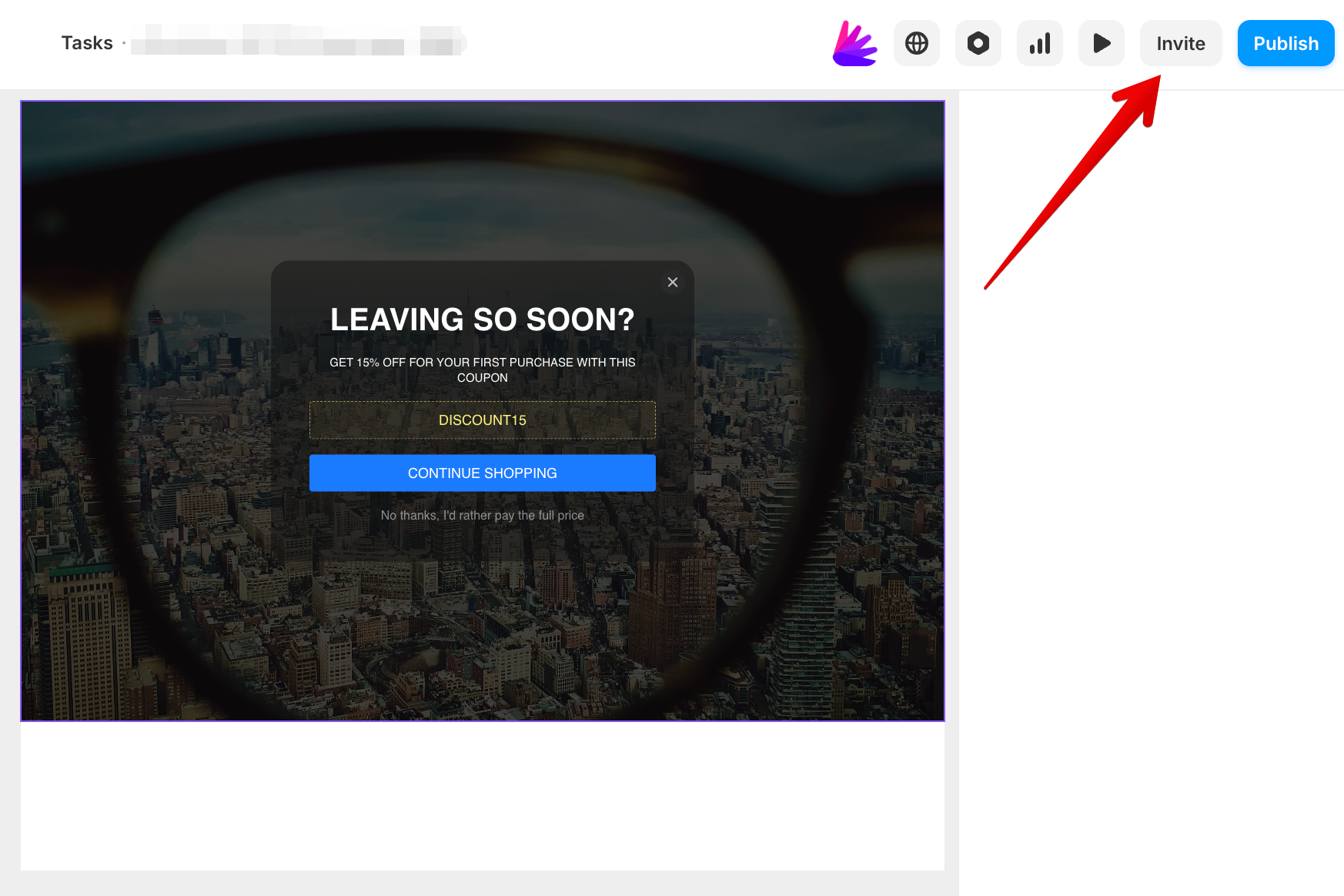
Open your Framer project and click Invite in the top-right corner:
- 2
-
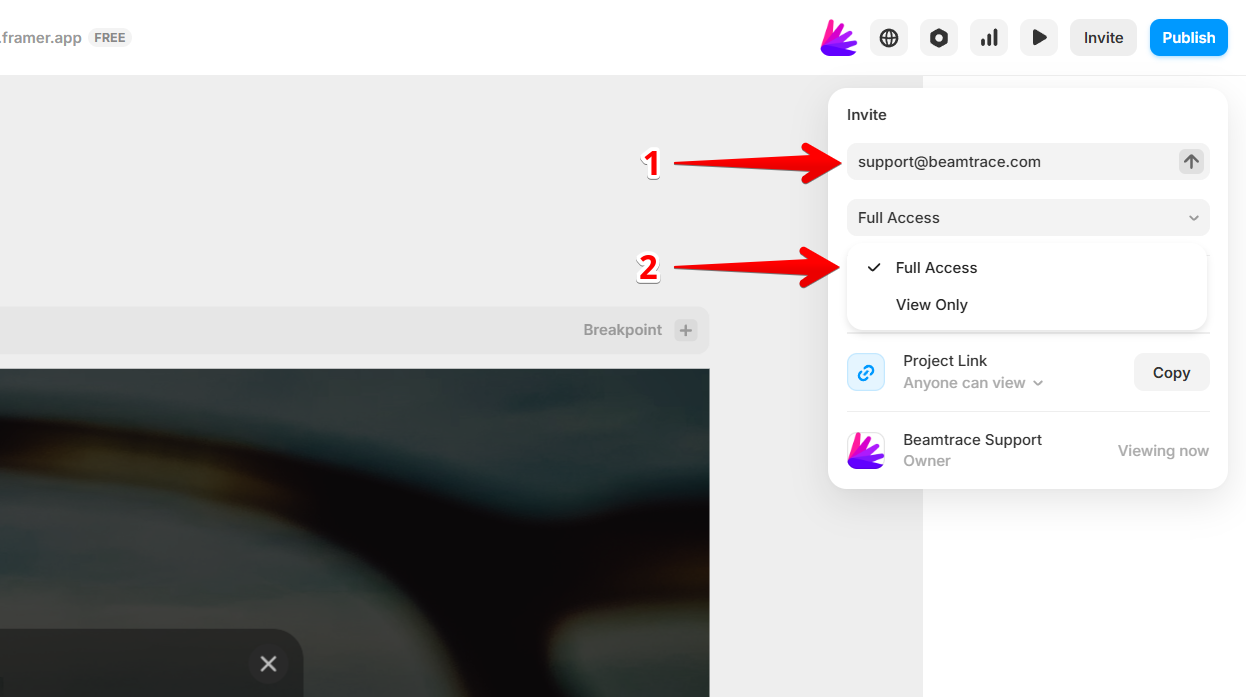
Enter our email address [email protected] and choose the Full Access option:
- 3
-
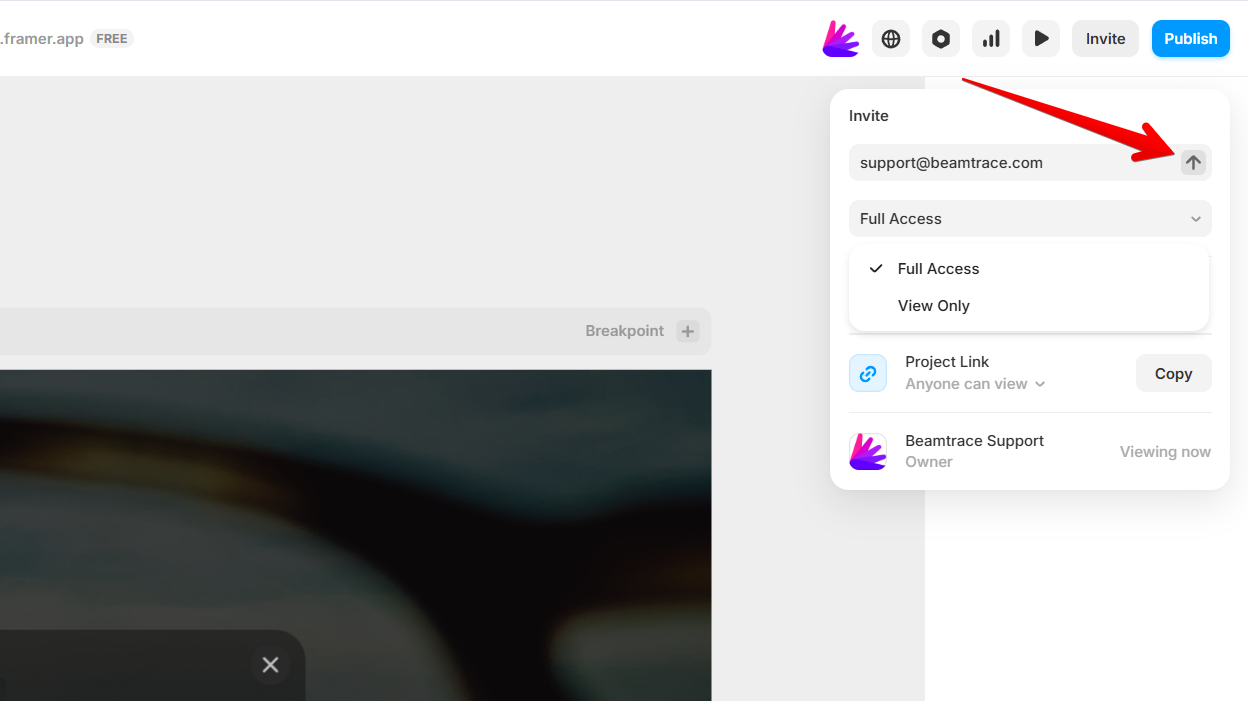
Click the arrow icon to email us an invitation and grant access to your project:
Providing Access to a Workspace
- 1
-
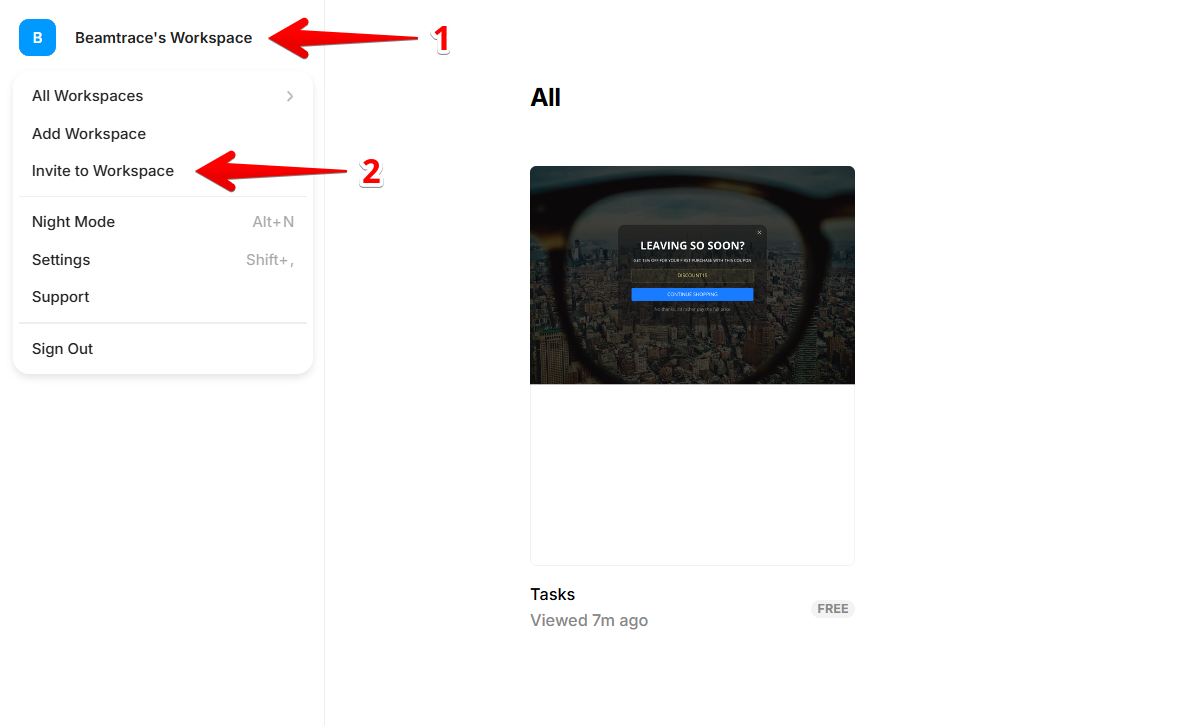
Open your Framer dashboard, click on your workspace in the top-left corner, and select the Invite to Workspace option:
- 2
-
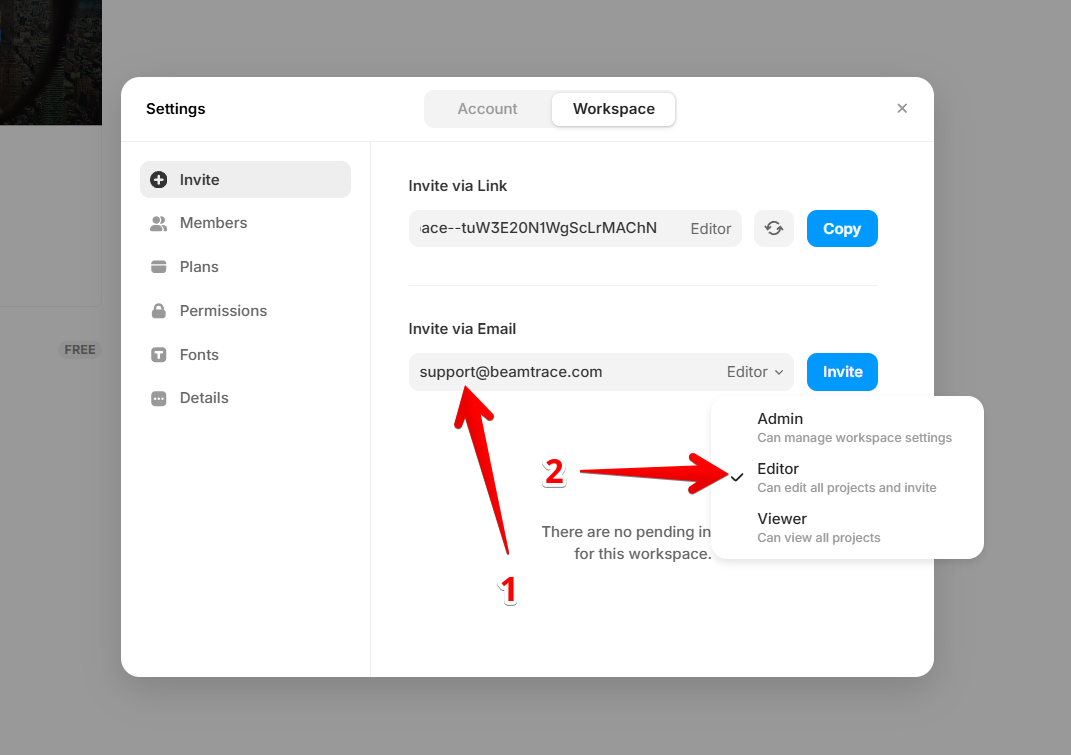
In the window that appears, enter our email address [email protected] and set the role to Editor:
- 3
-
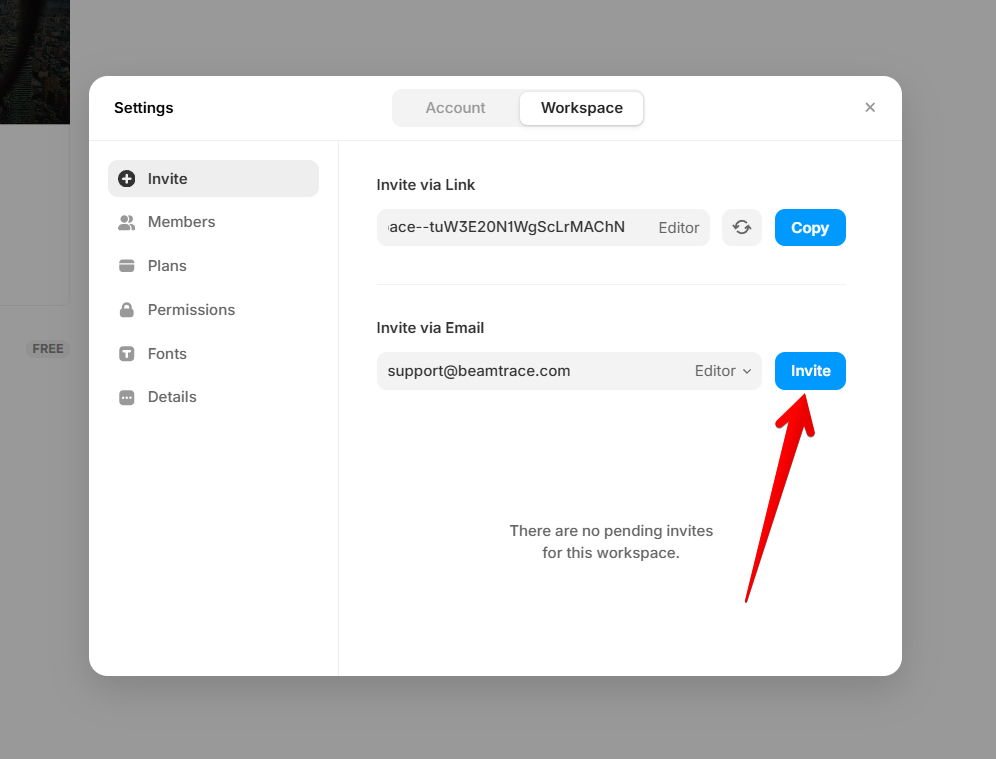
Click Invite to email us an invitation and give us access to your workspace:
Removing Beamtrace User from the Project
- 1
-
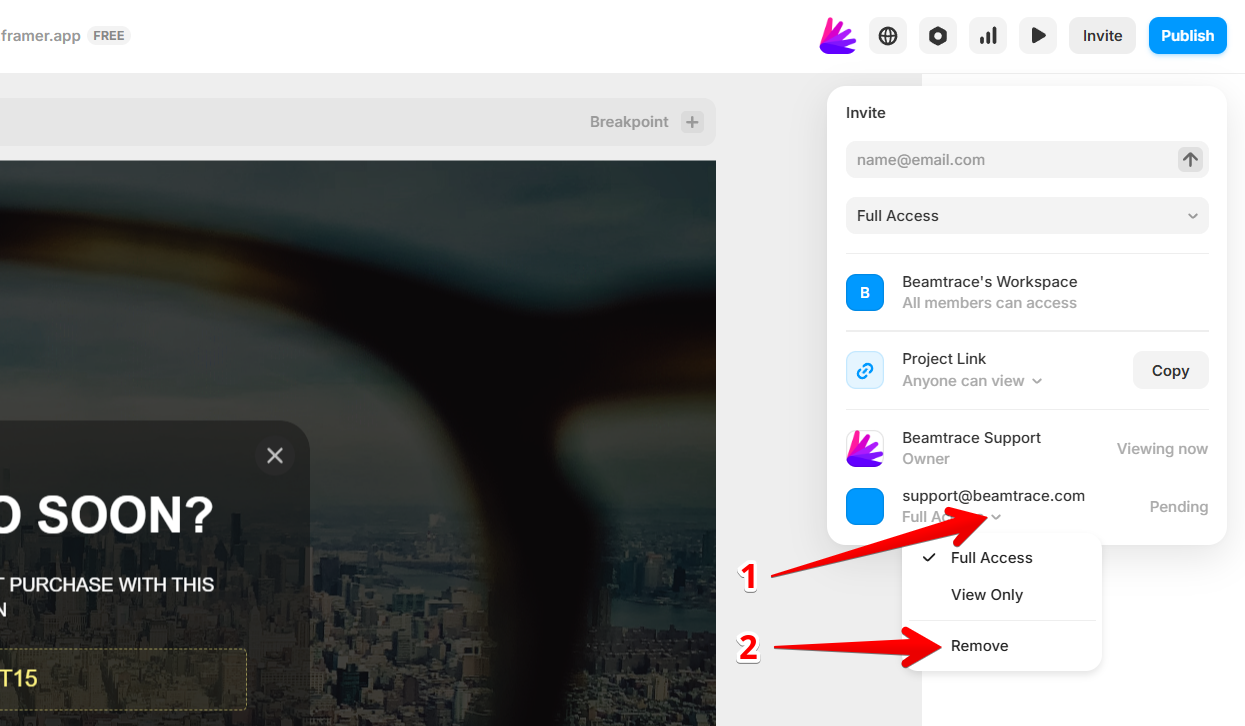
In your Framer project, click Invite in the top-right corner:
- 2
-
Click on our user and then click Remove:
The Beamtrace user has been successfully removed.
Removing Beamtrace User from the Workspace
- 1
-
In the Framer dashboard, click on your workspace in the top-left corner and select the Invite to Workspace option:
- 2
-
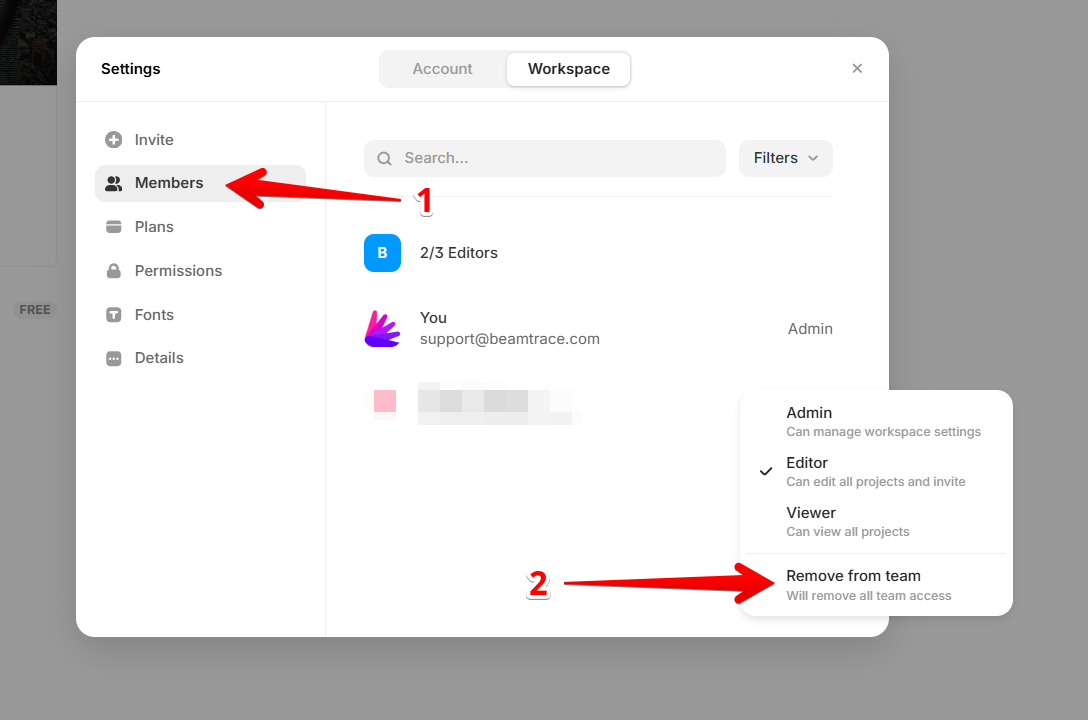
Choose Members from the menu on the left. Find our email, click the role next to it, and select Remove from team from the dropdown:
The Beamtrace user has been successfully removed.
If you run into any issues or need a hand at any step, feel free to reach out to our support team at [email protected] — we’re always happy to help! 😊